
How to Reset Duolingo: A Comprehensive Guide


Duolingo has become a popular tool for language learners worldwide, offering an engaging and interactive way to master new languages. However, there may come a time when you need to reset your progress, whether to start fresh, correct errors, or revisit foundational lessons. Resetting Duolingo is not always straightforward, as the app does not provide a direct reset button. This comprehensive guide will walk you through the steps to reset your Duolingo account, clear your progress, or restart a specific course. Whether you're a beginner or an experienced user, this article will help you navigate the process with ease and confidence.
How to Reset Duolingo: A Comprehensive Guide
Why Would You Need to Reset Duolingo?
Resetting Duolingo can be necessary for various reasons. Some users may want to start over to reinforce their learning from the beginning, while others might have accidentally skipped levels or want to switch to a different language. Resetting allows you to clear your progress and begin anew, ensuring a fresh start tailored to your current goals.
Steps to Reset Your Duolingo Account
To reset your Duolingo account, follow these steps:
1. Open the Duolingo app or website and log in.
2. Navigate to your profile settings.
3. Look for the option to reset or delete your progress.
4. Confirm your decision to reset. Note that this action is irreversible, and all your progress will be lost.
Resetting Duolingo on Mobile vs. Desktop
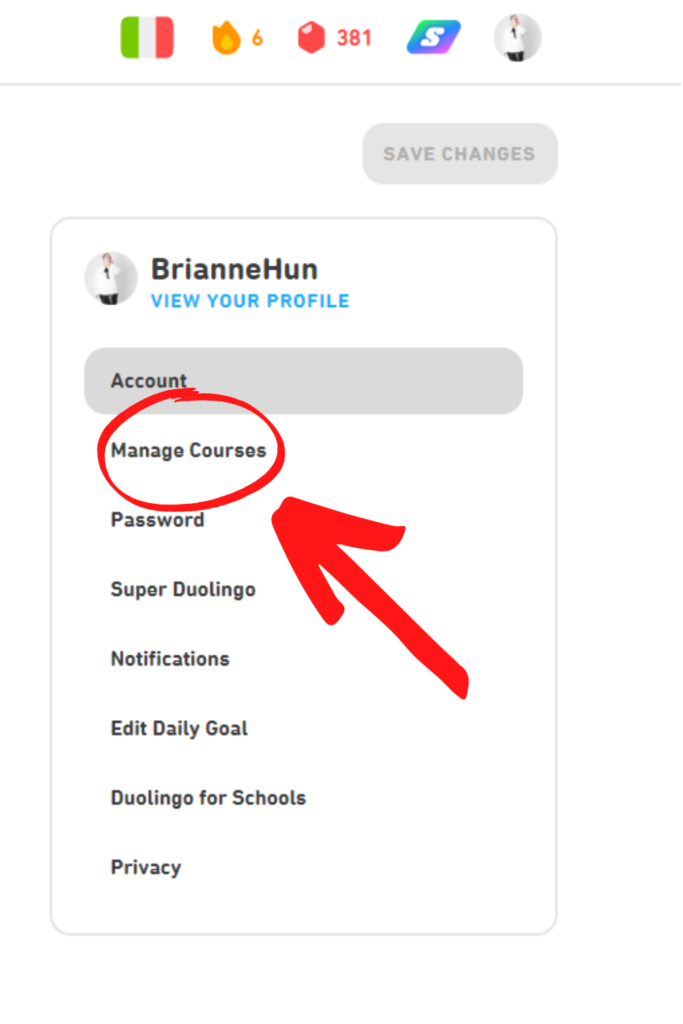
The process of resetting Duolingo may vary slightly depending on whether you're using the mobile app or the desktop version. On mobile, the reset option is often found under Settings > Manage Courses. On desktop, it’s typically located in your profile dropdown menu. Both methods achieve the same result, but the interface may differ.
What Happens After Resetting Duolingo?
After resetting, your progress, streaks, and achievements will be erased. You’ll start from Level 1 in your chosen language, and all completed lessons will be marked as incomplete. However, your account details and subscription status (if applicable) will remain unchanged.
Tips Before Resetting Duolingo
Before resetting, consider the following tips:
- Backup your progress: Take screenshots or notes of your achievements.
- Evaluate your goals: Ensure resetting aligns with your learning objectives.
- Check for alternatives: Sometimes, switching languages or using the Practice feature can achieve similar results without losing progress.
| Action | Impact |
|---|---|
| Reset Progress | Erases all learning data |
| Switch Language | Starts a new course without resetting |
| Practice Mode | Reinforces learning without losing progress |
How do I reset Duolingo to start over?

How to Reset Duolingo Progress on the Website
To reset your progress on the Duolingo website, follow these steps:
- Log in to your Duolingo account on the website.
- Navigate to the Settings menu by clicking on your profile picture.
- Scroll down and select the option to Reset Progress.
- Confirm your choice to reset your progress and start over.
How to Reset Duolingo Progress on the Mobile App
If you are using the Duolingo mobile app, the process is slightly different:
See AlsoFocus on initials and finals, not Pinyin spelling- Open the Duolingo app and log in to your account.
- Go to the Profile section by tapping on your profile icon.
- Select Settings and then choose the option to Reset Progress.
- Confirm the reset to begin your course from the start.
What Happens When You Reset Duolingo Progress?
Resetting your progress on Duolingo has several implications:
- All your completed lessons and streaks will be erased.
- You will lose access to any achievements or badges earned.
- Your leaderboard position will be reset to the starting point.
Can You Reset a Specific Language Course on Duolingo?
Yes, you can reset a specific language course without affecting others:
- Go to the Language Selection page on Duolingo.
- Choose the language course you want to reset.
- Click on the Settings icon next to the course.
- Select the option to Remove Course and confirm your choice.
Tips Before Resetting Your Duolingo Progress
Before you reset your progress, consider the following tips:
See AlsoChinese listening strategies: Passive listening- Make sure you are certain about resetting, as the action is irreversible.
- Take screenshots or notes of your achievements and progress for reference.
- Consider using the Practice feature to review lessons instead of resetting.
How do I start from the beginning on Duolingo?
How to Create a Duolingo Account
To start from the beginning on Duolingo, you first need to create an account. Follow these steps:
- Visit the Duolingo website or download the Duolingo app from your device's app store.
- Click on Get Started or Sign Up to begin the registration process.
- Choose to sign up using your email address, Google account, or Facebook account.
- Fill in the required details, such as your name, email, and password.
- Complete the registration by verifying your email if necessary.
Selecting Your Language Course
Once your account is set up, you need to choose the language you want to learn. Here’s how:
See AlsoSensible Chinese character learning revisited- After logging in, you will be prompted to select a language course.
- Browse through the list of available languages and select the one you are interested in.
- If you are a complete beginner, choose the Beginner level. If you have some knowledge, you can take a placement test.
- Confirm your selection to start the course.
Setting Up Your Daily Goals
Duolingo allows you to set daily learning goals to keep you motivated. Follow these steps:
- After selecting your language, you will be asked to set a daily goal.
- Choose from options like Casual, Regular, Serious, or Insane, depending on how much time you can dedicate daily.
- Your daily goal will help you stay consistent and track your progress over time.
Understanding the Duolingo interface is crucial for effective learning. Here’s a quick guide:
- The home screen displays your current course and progress.
- Use the navigation bar at the bottom to access different sections like Home, Leaderboard, Shop, and Profile.
- Each lesson is divided into small, manageable sections, making it easy to learn step-by-step.
Starting Your First Lesson
Now that everything is set up, you can start your first lesson. Here’s how:
- Click on the first lesson in your selected language course.
- Follow the on-screen instructions, which will include listening, speaking, reading, and writing exercises.
- Complete the lesson to earn XP points and unlock the next level.
- Review any mistakes and use the tips section for additional guidance.
How do I reset my Duolingo practice?
How to Reset Your Duolingo Practice on the Mobile App
To reset your Duolingo practice on the mobile app, follow these steps:
- Open the Duolingo app on your device.
- Navigate to the Profile section by tapping on your profile icon.
- Select the Settings option from the menu.
- Scroll down and tap on Manage Courses.
- Choose the course you want to reset and select Remove or Reset Progress.
How to Reset Your Duolingo Practice on the Web Version
To reset your Duolingo practice on the web version, follow these steps:
- Log in to your Duolingo account on the official website.
- Click on your Profile icon in the top-right corner.
- Select Settings from the dropdown menu.
- Scroll down to the Learning Language section.
- Click on Remove or Reset Progress for the course you want to reset.
What Happens When You Reset Your Duolingo Practice?
Resetting your Duolingo practice has the following effects:
- All your progress in the selected course will be erased.
- Your streak and XP will remain unaffected.
- You will start the course from the beginning, including all lessons and skills.
Can You Reset a Single Skill Instead of the Entire Course?
Yes, you can reset a single skill in Duolingo by following these steps:
- Open the Duolingo app or website.
- Go to the Skill Tree for your course.
- Tap or click on the skill you want to reset.
- Select the Practice option to reset the skill's progress.
Tips Before Resetting Your Duolingo Practice
Before resetting your Duolingo practice, consider the following tips:
- Ensure you have backed up any important data or progress.
- Understand that resetting is irreversible and will delete all progress in the selected course.
- Use the Practice feature to review skills without resetting.
Is there a way to redo lessons on Duolingo?

How to Redo Lessons on Duolingo
Yes, there is a way to redo lessons on Duolingo. The platform allows users to revisit and repeat lessons to reinforce their learning. Here’s how you can do it:
- Navigate to the skill you want to redo in your course tree.
- Click on the Practice button (represented by a dumbbell icon) to redo the lesson without affecting your progress.
- Alternatively, you can reset a skill to its original state by clicking on the skill and selecting the Reset option.
Why Redo Lessons on Duolingo?
Redoing lessons on Duolingo can be beneficial for several reasons:
- Reinforce learning: Repetition helps solidify your understanding of the material.
- Improve retention: Revisiting lessons can improve long-term memory of vocabulary and grammar.
- Boost confidence: Practicing again can make you feel more comfortable with the language.
Using the Practice Feature on Duolingo
The Practice feature is a quick and easy way to redo lessons without losing progress. Here’s how it works:
- Open the skill you want to practice.
- Click the dumbbell icon to start a practice session.
- Complete the exercises to earn XP and strengthen your skills.
Resetting a Skill on Duolingo
If you want to completely redo a skill from scratch, you can reset it. Here’s how:
- Go to the skill you want to reset.
- Click on the three dots (menu) next to the skill.
- Select Reset Skill to remove all progress and start over.
Tips for Effective Lesson Redo on Duolingo
To make the most out of redoing lessons, consider these tips:
- Focus on weak areas: Identify topics you struggle with and prioritize them.
- Set a schedule: Regularly revisit lessons to maintain consistency.
- Use additional resources: Combine Duolingo with other learning tools for better results.
Frequently Asked Questions From our Community
How do I reset my progress on Duolingo?
To reset your progress on Duolingo, you need to access your account settings. First, log in to your Duolingo account on the web version (this option is not available on the mobile app). Navigate to the Settings page, scroll down, and click on the option that says Delete Account. After confirming, you can create a new account with the same email address to start fresh. Keep in mind that this will permanently erase all your progress, streaks, and achievements.
Can I reset a specific course on Duolingo without losing all my progress?
Unfortunately, Duolingo does not currently offer an option to reset a single course without affecting your overall progress. If you want to restart a specific course, you will need to manually reset your entire account, which means losing all your progress across all languages. Alternatively, you can use the Practice feature to revisit lessons within the course, but this won't reset your progress to the beginning.
Will resetting Duolingo affect my streak?
Yes, resetting your Duolingo account will completely erase your streak, along with all other progress and achievements. If maintaining your streak is important to you, consider creating a new account instead of resetting your current one. This way, you can keep your original account active while starting fresh on a new one.
Is there a way to reset Duolingo on the mobile app?
No, the option to reset your Duolingo account is only available on the web version of the platform. To reset your account, you must log in through a browser and follow the steps outlined in the settings. The mobile app does not currently support this feature, so you will need to use a computer or mobile browser to complete the process.
Leave a Reply
Related Posts