
How to Change the Duolingo App Icon

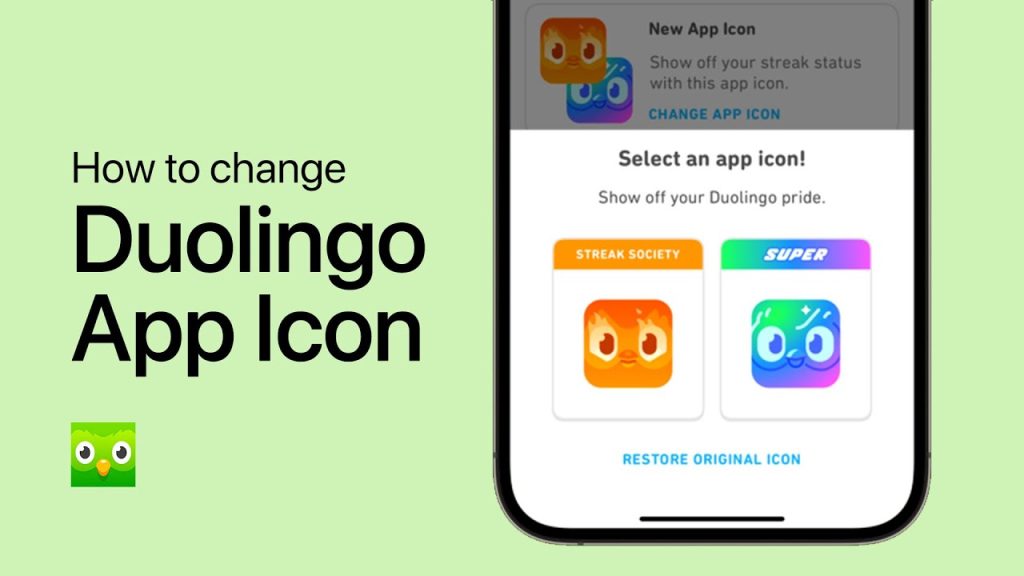
The Duolingo app icon is instantly recognizable with its vibrant green background and friendly owl mascot, Duo. However, if you’re looking to personalize your device or simply want a fresh look, changing the app icon can be a fun and creative way to make your home screen stand out. Whether you’re using an iPhone or an Android device, this guide will walk you through the steps to customize the Duolingo app icon. From utilizing built-in features to exploring third-party tools, you’ll discover how to give your language-learning app a unique appearance that reflects your personal style.
How to Change the Duolingo App Icon
Changing the Duolingo app icon can be a fun way to personalize your device and make your language-learning experience feel more unique. Below, we’ll guide you through the process step by step, depending on your device and preferences.
1. Why Change the Duolingo App Icon?
Changing the app icon allows you to customize your device’s appearance and make Duolingo stand out on your home screen. Whether you want a fresh look or prefer a specific design, this feature can enhance your user experience.
See AlsoTraditional Chinese Medicine vs Western Medicine Who Wins?2. Changing the Icon on iOS Devices
On iOS, you can change the Duolingo app icon using the Shortcuts app. Follow these steps:
1. Open the Shortcuts app on your iPhone or iPad.
2. Tap the + button to create a new shortcut.
3. Select Add Action and search for Open App.
4. Choose Duolingo from your app list.
5. Tap the three dots in the top-right corner, then select Add to Home Screen.
6. Customize the icon name and choose a new image for the icon.
7. Tap Add to save the new icon to your home screen.
3. Changing the Icon on Android Devices
On Android, you’ll need a launcher app like Nova Launcher to change the Duolingo app icon. Here’s how:
1. Download and install a launcher app from the Google Play Store.
2. Open the launcher app and go to the app drawer.
3. Long-press the Duolingo app icon.
4. Select Edit or Change Icon.
5. Choose a new icon from the available options or upload a custom image.
6. Save your changes, and the new icon will appear on your home screen.
4. Using Custom Icons for Duolingo
If you want to use a custom icon, you can download one from the internet or create your own. Ensure the image is in PNG format and has the correct dimensions for your device. Follow the steps above to replace the default icon with your custom design.
See AlsoHow to look up Chinese characters you don’t know5. Troubleshooting Icon Change Issues
If you encounter issues while changing the Duolingo app icon, consider the following:
- Ensure your device’s operating system is up to date.
- Verify that you have the latest version of the Shortcuts app (for iOS) or your launcher app (for Android).
- Restart your device and try the process again.
| Device | Method | Tools Required |
|---|---|---|
| iOS | Shortcuts App | Shortcuts App, Custom Image |
| Android | Launcher App | Nova Launcher, Custom Image |
How do you change the app icon symbol?
How to Change the App Icon on Android
To change the app icon on an Android device, follow these steps:
See AlsoDuolingo An Error Occurred Try Again Later: Fix It Today- Download a custom launcher from the Google Play Store, such as Nova Launcher or Apex Launcher.
- Install an icon pack that includes the desired icon style.
- Open the custom launcher settings and navigate to the icon customization section.
- Select the app whose icon you want to change.
- Choose the new icon from the installed icon pack and apply the changes.
How to Change the App Icon on iOS
Changing the app icon on iOS requires using the Shortcuts app. Here’s how:
- Open the Shortcuts app on your iPhone or iPad.
- Create a new shortcut and select Add Action.
- Search for Open App and select the app you want to customize.
- Tap the three dots in the top-right corner and select Add to Home Screen.
- Choose a new icon image and name, then tap Add to save the changes.
How to Change the App Icon on Windows
To change the app icon on a Windows PC, follow these steps:
- Right-click the app shortcut on your desktop or in the Start menu.
- Select Properties from the context menu.
- Go to the Shortcut tab and click Change Icon.
- Choose a new icon from the list or browse for a custom icon file.
- Click OK to apply the new icon.
How to Change the App Icon on macOS
To change the app icon on a Mac, follow these steps:
- Find an icon file in .icns format or convert an image to this format.
- Right-click the app in the Applications folder and select Get Info.
- Drag the new icon file onto the small icon in the top-left corner of the Info window.
- Enter your password if prompted to confirm the change.
- Close the Info window to see the updated icon.
How to Change the App Icon Using Third-Party Tools
Third-party tools can simplify the process of changing app icons. Here’s how to use them:
- Download a third-party app like Icon Changer (Android) or iEmpty (iOS).
- Follow the app’s instructions to select and customize icons.
- Apply the changes and restart your device if necessary.
- Verify the new icon appears correctly on your home screen.
- Uninstall the tool if no longer needed.
Has Duolingo logo changed?
Has Duolingo Updated Its Logo Recently?
Yes, Duolingo has updated its logo. The company introduced a new logo as part of a broader rebranding effort. The new design reflects a more modern and approachable aesthetic, aligning with Duolingo's mission to make language learning fun and accessible. Key changes include:
- Simplified design: The new logo features a cleaner and more minimalist look.
- Updated color palette: The green color has been slightly adjusted to appear more vibrant.
- Refined typography: The font has been modernized to enhance readability and visual appeal.
What Are the Key Differences in the New Duolingo Logo?
The new Duolingo logo differs from the previous version in several noticeable ways. These changes were made to better represent the brand's identity and values. The main differences include:
- Shape of the owl: The iconic Duolingo owl, named Duo, has been redesigned with smoother lines and a friendlier expression.
- Removal of the book: The book that Duo used to hold has been removed, symbolizing a shift toward a more digital and interactive learning experience.
- Flatter design: The logo now adopts a flatter, two-dimensional style, which is more in line with contemporary design trends.
Why Did Duolingo Decide to Change Its Logo?
Duolingo decided to change its logo to better align with its evolving brand identity and user experience. The reasons behind this decision include:
- Modernization: To stay relevant in a competitive market, Duolingo needed a logo that reflects current design trends.
- User engagement: The new logo aims to make the brand appear more approachable and engaging to users of all ages.
- Global appeal: The updated design is intended to resonate with a broader, more diverse audience worldwide.
How Has the Duolingo Community Reacted to the New Logo?
The Duolingo community has had mixed reactions to the new logo. While some users appreciate the fresh look, others have expressed nostalgia for the old design. Key points of feedback include:
- Positive reception: Many users find the new logo more modern and visually appealing.
- Criticism: Some long-time users feel that the new design lacks the charm of the original logo.
- Adaptation: Over time, most users have grown accustomed to the updated logo, and it has become widely accepted.
What Does the New Duolingo Logo Represent?
The new Duolingo logo represents the brand's commitment to innovation, accessibility, and user-friendly design. It symbolizes:
- Progress: The updated logo reflects Duolingo's continuous efforts to improve and evolve.
- Inclusivity: The design aims to appeal to a global audience, emphasizing the brand's mission to make education accessible to everyone.
- Fun and engagement: The playful and approachable design reinforces Duolingo's focus on making learning enjoyable.
Frequently Asked Questions From our Community
How can I change the Duolingo app icon on my iPhone?
To change the Duolingo app icon on your iPhone, you need to use the Shortcuts app. First, open the Shortcuts app and tap the + button to create a new shortcut. Select Add Action and search for Open App. Choose Duolingo from the list of apps. Next, tap the three dots in the top-right corner, select Add to Home Screen, and customize the name and icon. You can choose an image from your gallery or use a pre-designed icon. Finally, tap Add to place the new icon on your home screen.
Is it possible to change the Duolingo app icon on Android devices?
Yes, you can change the Duolingo app icon on Android devices using a custom launcher. Download a launcher like Nova Launcher or Action Launcher from the Google Play Store. Once installed, long-press the Duolingo app icon on your home screen, select Edit, and choose a new icon from the launcher's library or your own image gallery. This method allows you to personalize your app icons without needing additional permissions.
Does changing the Duolingo app icon affect the app's functionality?
No, changing the Duolingo app icon does not affect the app's functionality. The process only alters the visual representation of the app on your home screen. All features, including lessons, streaks, and progress tracking, will continue to work as usual. The change is purely cosmetic and designed to let users personalize their device's appearance.
Can I revert to the original Duolingo app icon after changing it?
Yes, you can revert to the original Duolingo app icon at any time. On iPhone, simply delete the custom shortcut you created and use the default app icon. On Android, open your launcher settings, locate the Duolingo app, and reset the icon to its default. This process is quick and ensures you can switch back to the original design whenever you prefer.
Leave a Reply
Related Posts