
How To Turn Off Sound Effects On Duolingo: Easy Steps In 2025


Duolingo has become a popular tool for language learners worldwide, offering interactive lessons and engaging features. However, some users may find the sound effects distracting, especially when studying in quiet environments or focusing intensely. If you're looking to customize your learning experience by turning off these audio cues, you're in the right place. This guide provides easy, step-by-step instructions to disable sound effects on Duolingo in 2025. Whether you're using the app on your smartphone, tablet, or desktop, these straightforward methods will help you tailor the platform to your preferences, ensuring a more personalized and distraction-free language-learning journey.
How To Turn Off Sound Effects On Duolingo: Easy Steps In 2025
Why Turn Off Sound Effects on Duolingo?
Turning off sound effects on Duolingo can be beneficial for users who prefer a quieter learning environment or those who find the sounds distracting. Whether you're studying in a public space or simply want to focus better, disabling sound effects can enhance your learning experience. Additionally, it can help conserve battery life on your device.
Step-by-Step Guide to Disable Sound Effects on Duolingo
To turn off sound effects on Duolingo, follow these easy steps:
1. Open the Duolingo app on your device.
2. Tap on your profile icon located in the top-right corner.
3. Select Settings from the dropdown menu.
4. Scroll down to the Sound Effects option.
5. Toggle the switch to turn off sound effects.
Alternative Methods to Mute Duolingo Sounds
If you prefer not to disable sound effects permanently, you can use alternative methods to mute sounds temporarily:
- Use your device's volume controls to lower or mute the sound.
- Enable Do Not Disturb mode on your device to silence notifications and app sounds.
- Use headphones with a mute button for quick sound control.
Common Issues When Turning Off Sound Effects
Some users may encounter issues when trying to disable sound effects on Duolingo. Common problems include:
- App glitches preventing the settings from saving.
- Outdated app versions that lack the sound effects toggle.
- Device compatibility issues affecting the settings menu.
To resolve these issues, ensure your app is updated to the latest version and restart your device if necessary.
See AlsoLearning (or not learning) Chinese slangBenefits of Customizing Your Duolingo Experience
Customizing your Duolingo settings, including sound effects, can significantly improve your learning journey. Benefits include:
- Enhanced focus by eliminating distractions.
- Personalized learning tailored to your preferences.
- Improved accessibility for users with hearing sensitivities.
| Feature | Benefit |
|---|---|
| Turn Off Sound Effects | Reduces distractions and conserves battery |
| Alternative Muting Methods | Provides temporary sound control |
| Customizable Settings | Enhances focus and personalization |
How do I turn off Duolingo sound effects?

How to Disable Duolingo Sound Effects on Mobile
To turn off sound effects in the Duolingo mobile app, follow these steps:
See AlsoZooming in: The tools you need to break down and understand Chinese- Open the Duolingo app on your smartphone or tablet.
- Tap on the Profile icon located at the bottom right corner of the screen.
- Select the Settings gear icon in the top right corner.
- Scroll down to the Sound Effects option.
- Toggle the switch to turn off sound effects.
How to Turn Off Duolingo Sound Effects on Desktop
If you're using Duolingo on a desktop or laptop, here's how to disable sound effects:
- Log in to your Duolingo account on the website.
- Click on your Profile picture in the top right corner.
- Select Settings from the dropdown menu.
- Navigate to the Sound Effects section.
- Uncheck the box next to Sound Effects to disable them.
Why Turn Off Duolingo Sound Effects?
There are several reasons why users might want to disable sound effects in Duolingo:
- To focus better on the lessons without distractions.
- To use the app in quiet environments like libraries or offices.
- To save battery life on mobile devices.
- To avoid repetitive or annoying sounds during practice.
- To customize the learning experience to personal preferences.
How to Adjust Duolingo Volume Settings
If you don't want to completely turn off sound effects, you can adjust the volume:
See AlsoThe key to unlocking your first semester of Chinese- Open the Duolingo app or website.
- Go to Settings as described above.
- Look for the Volume slider under sound settings.
- Drag the slider to your preferred volume level.
- Save your changes and continue learning.
Common Issues When Turning Off Duolingo Sound Effects
Some users may encounter issues when trying to disable sound effects. Here's how to troubleshoot:
- Ensure your app is updated to the latest version.
- Check your device's sound settings to ensure they're not overriding the app.
- Restart the app or device if changes don't take effect immediately.
- Reinstall the app if the issue persists.
- Contact Duolingo support for further assistance.
What happened to the sound on Duolingo?
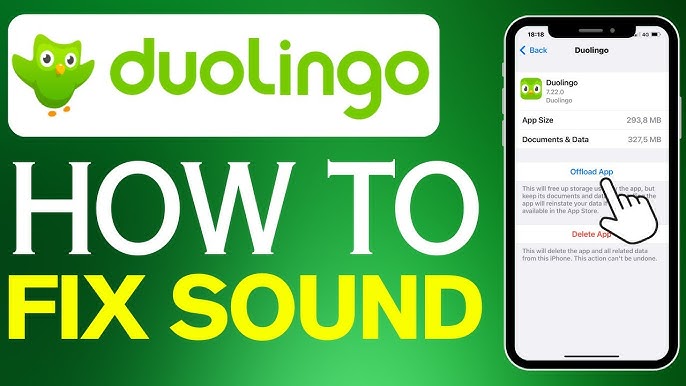
Why is there no sound on Duolingo?
If you're experiencing no sound on Duolingo, it could be due to several reasons. Here are some common causes:
See AlsoThe Best Graded Reading Apps for Learning Chinese- Device settings: Ensure your device's volume is turned up and not on silent mode.
- App settings: Check if the sound is enabled within the Duolingo app settings.
- Internet connection: A poor or unstable connection may prevent audio from loading properly.
How to fix sound issues on Duolingo?
To resolve sound issues on Duolingo, follow these steps:
- Restart the app: Close and reopen Duolingo to refresh the audio settings.
- Update the app: Ensure you are using the latest version of Duolingo, as updates often fix bugs.
- Clear cache: Clear the app's cache to remove any corrupted data that might be causing the issue.
Duolingo occasionally faces sound-related bugs due to updates or server issues. Here’s what you should know:
- Recent updates: New updates may introduce temporary bugs affecting audio functionality.
- Server problems: Duolingo's servers might experience downtime, impacting sound delivery.
- User reports: Check forums or social media to see if other users are reporting similar issues.
Can browser settings affect Duolingo's sound?
If you're using Duolingo on a browser, browser settings can interfere with sound. Consider the following:
- Browser permissions: Ensure the browser has permission to play sound.
- Ad blockers: Disable ad blockers or extensions that might block audio elements.
- Browser updates: Use an updated browser version to avoid compatibility issues.
Does Duolingo support sound on all devices?
Duolingo supports sound on most devices, but compatibility issues can arise. Here’s what to check:
- Device compatibility: Ensure your device meets Duolingo's system requirements.
- Operating system: Some older operating systems may not fully support Duolingo's audio features.
- App version: Use the correct app version for your device type (iOS, Android, etc.).
How do I turn off the vibration in Duolingo?

How to Disable Vibration in Duolingo on Mobile Devices
To turn off vibration in Duolingo on your mobile device, follow these steps:
- Open the Duolingo app on your smartphone or tablet.
- Tap on your profile icon located in the top-right corner of the screen.
- Select Settings from the dropdown menu.
- Scroll down to the Vibration option under the General section.
- Toggle the switch to turn off vibration feedback.
How to Turn Off Vibration in Duolingo on Desktop
If you're using Duolingo on a desktop, vibration settings are not applicable since desktops do not support vibration. However, you can manage other notification settings:
- Log in to your Duolingo account on the website.
- Click on your profile picture in the top-right corner.
- Go to Settings.
- Adjust notification preferences to customize your experience.
Why Disable Vibration in Duolingo?
Disabling vibration in Duolingo can be beneficial for several reasons:
- To avoid distractions during learning sessions.
- To save battery life on your mobile device.
- To prevent annoyance in quiet environments.
Alternative Ways to Customize Duolingo Notifications
If you want to further customize your Duolingo experience, consider these options:
- Adjust sound settings to control audio feedback.
- Modify notification frequency for reminders and updates.
- Enable or disable daily goal reminders based on your preferences.
Troubleshooting Vibration Issues in Duolingo
If you're experiencing issues with vibration settings, try these troubleshooting steps:
- Ensure your app is updated to the latest version.
- Check your device's system settings for vibration permissions.
- Reinstall the app if the issue persists.
How do I turn off listening on Duolingo?
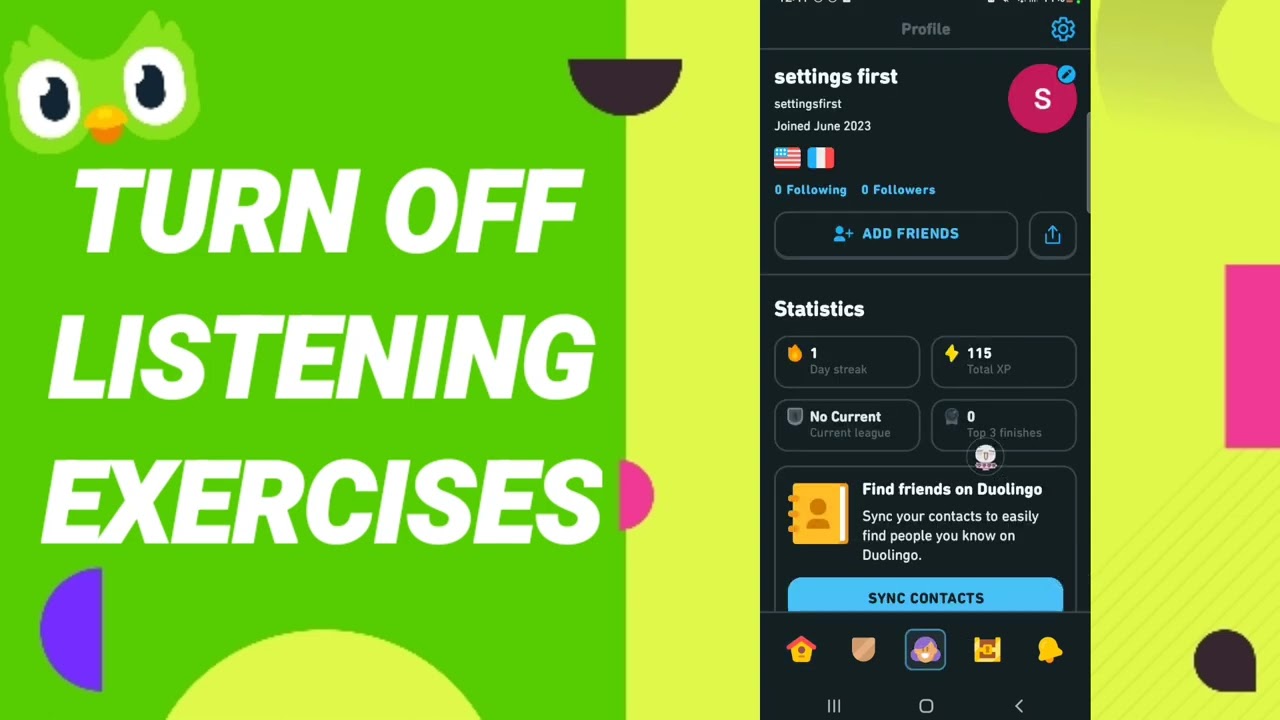
How to Disable Listening Exercises on Duolingo
To turn off listening exercises on Duolingo, follow these steps:
- Open the Duolingo app on your device.
- Go to your profile by tapping on your profile icon.
- Select Settings from the menu.
- Scroll down to find the Listening Exercises option.
- Toggle the switch to disable listening exercises.
Why Disable Listening Exercises on Duolingo?
There are several reasons why you might want to disable listening exercises:
- You may find the listening exercises too challenging.
- You might prefer to focus on other skills like reading or writing.
- You could be in a noisy environment where listening is difficult.
- You might have hearing impairments that make listening exercises less effective.
- You may want to customize your learning experience to suit your needs.
How to Customize Your Learning Experience on Duolingo
Customizing your learning experience on Duolingo can help you focus on the skills that matter most to you:
- Access the Settings menu from your profile.
- Adjust the Listening Exercises toggle as needed.
- Explore other settings like Speaking Exercises and Grammar Tips.
- Use the Practice feature to focus on specific skills.
- Regularly review your progress and adjust settings accordingly.
What to Do If You Can't Find the Listening Exercises Option
If you can't find the option to disable listening exercises, consider the following steps:
- Ensure your app is updated to the latest version.
- Check if the feature is available in your language course.
- Contact Duolingo Support for assistance.
- Look for community forums or FAQs for additional help.
- Consider using the web version of Duolingo, which may have different settings.
Alternative Ways to Practice Listening Without Duolingo
If you disable listening exercises on Duolingo, you can still practice listening through other methods:
- Listen to podcasts in the language you're learning.
- Watch movies or TV shows with subtitles.
- Use language learning apps that focus on listening skills.
- Engage in conversations with native speakers.
- Listen to music and try to understand the lyrics.
Frequently Asked Questions From our Community
How do I turn off sound effects on Duolingo in 2025?
To turn off sound effects on Duolingo in 2025, open the app and navigate to your profile settings. Tap on the gear icon to access the settings menu. Scroll down to the audio settings section and locate the option for sound effects. Toggle the switch to the off position to disable them. This will ensure a quieter learning experience while using the app.
Can I disable sound effects on Duolingo without turning off all audio?
Yes, you can disable sound effects on Duolingo without turning off all audio. In the audio settings menu, you will find separate toggles for sound effects, music, and voice narration. Simply turn off the sound effects option while leaving the other audio settings enabled. This allows you to continue hearing lessons and pronunciations without the distraction of sound effects.
Why should I turn off sound effects on Duolingo?
Turning off sound effects on Duolingo can be beneficial if you find them distracting or if you are in a quiet environment where you prefer to focus solely on the lesson content. Disabling sound effects can also help conserve battery life on your device, as fewer audio files will be played during your sessions. Additionally, it can make the learning experience more personalized to your preferences.
Will turning off sound effects affect my progress on Duolingo?
No, turning off sound effects will not affect your progress on Duolingo. The app is designed to function seamlessly regardless of your audio preferences. You will still receive all the necessary feedback and instructions through text and other audio elements, ensuring that your learning journey remains uninterrupted and effective.
Leave a Reply
Related Posts