
How To Purchase Duolingo Super: simple steps to upgrade your plan


Duolingo Super is a premium subscription plan designed to enhance your language-learning experience by offering additional features and removing ads. If you’re looking to upgrade your Duolingo account to Super, the process is straightforward and can be completed in just a few simple steps. Whether you’re using the mobile app or the web version, this guide will walk you through the process of purchasing Duolingo Super, ensuring you can unlock its benefits with ease. From accessing the subscription options to completing the payment, here’s everything you need to know to upgrade your plan and take your language learning to the next level.
How To Purchase Duolingo Super: Simple Steps to Upgrade Your Plan
1. What is Duolingo Super and Why Upgrade?
Duolingo Super is the premium version of the popular language-learning app, Duolingo. It offers ad-free learning, unlimited hearts, and offline access to lessons. Upgrading to Duolingo Super enhances your learning experience by removing distractions and providing additional features that help you progress faster. It’s ideal for serious learners who want to maximize their language skills.
2. Step-by-Step Guide to Purchasing Duolingo Super
To upgrade to Duolingo Super, follow these steps:
1. Open the Duolingo app on your device.
2. Go to your profile by tapping the profile icon.
3. Select the Super tab or look for the Try Super option.
4. Choose your preferred subscription plan (monthly, annual, or family plan).
5. Enter your payment details and confirm the purchase.
3. Payment Options for Duolingo Super
Duolingo Super offers flexible payment options to suit your needs. You can pay using credit/debit cards, Google Pay, Apple Pay, or PayPal. Below is a table summarizing the available payment methods:
| Payment Method | Availability |
|---|---|
| Credit/Debit Card | Worldwide |
| Google Pay | Android Devices |
| Apple Pay | iOS Devices |
| PayPal | Selected Regions |
4. Benefits of Duolingo Super
Duolingo Super provides several exclusive benefits:
- Ad-free experience: Focus on learning without interruptions.
- Unlimited hearts: Avoid being locked out of lessons after mistakes.
- Offline access: Learn anytime, anywhere, even without an internet connection.
- Progress quizzes: Track your improvement with personalized quizzes.
5. Managing Your Duolingo Super Subscription
You can manage your Duolingo Super subscription through your account settings. To cancel or modify your plan:
1. Go to the subscription settings in your app or account.
2. Select Manage Subscription.
3. Choose to cancel, change plans, or update payment details.
Remember, you can continue using Duolingo Super until the end of your billing period, even after cancellation.
How do I update my Duolingo subscription?

How to Update Your Duolingo Subscription on the Website
To update your Duolingo subscription via the website, follow these steps:
- Log in to your Duolingo account on the official website.
- Navigate to your profile settings by clicking on your profile picture in the top-right corner.
- Select Subscription from the dropdown menu.
- Choose the Update Subscription option and follow the prompts to modify your plan.
- Enter your payment details if required and confirm the changes.
Updating Your Duolingo Subscription via the Mobile App
If you prefer using the mobile app, here’s how to update your subscription:
See AlsoThe Best Graded Reading Apps for Learning Chinese- Open the Duolingo app on your device and log in to your account.
- Tap on the Profile icon in the bottom-right corner.
- Go to the Settings menu and select Subscription.
- Choose Manage Subscription and follow the instructions to update your plan.
- Confirm the changes and ensure your payment method is up to date.
Changing Your Payment Method for Duolingo
To change your payment method for Duolingo, follow these steps:
- Access your Duolingo account on the website or app.
- Go to the Subscription section in your profile settings.
- Select Update Payment Method.
- Enter your new credit card or PayPal details.
- Save the changes and ensure the new payment method is active.
Switching Between Duolingo Subscription Plans
If you want to switch between Duolingo plans, here’s what to do:
- Log in to your Duolingo account on the website or app.
- Navigate to the Subscription section in your settings.
- Select Change Plan to view available options.
- Choose the new plan that suits your needs, such as Super Duolingo or Family Plan.
- Confirm the changes and review the updated billing details.
Canceling and Resubscribing to Duolingo
If you need to cancel and resubscribe to Duolingo, follow these steps:
See AlsoRole-playing as a way to expand your Chinese- Go to your Duolingo account settings on the website or app.
- Select Subscription and choose Cancel Subscription.
- Wait for the current billing cycle to end if you want to avoid additional charges.
- To resubscribe, go back to the Subscription section and select a new plan.
- Enter your payment details and confirm the resubscription.
How do I update Duolingo to the latest version?
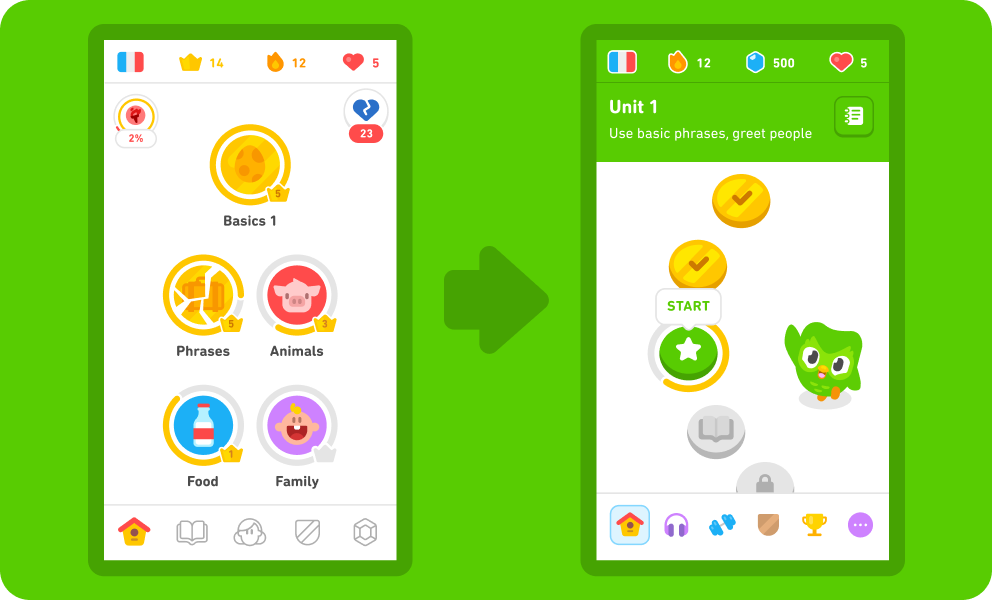
How to Update Duolingo on Android Devices
To update Duolingo on an Android device, follow these steps:
- Open the Google Play Store on your device.
- Tap on the menu icon (three horizontal lines) in the top-left corner.
- Select My apps & games from the menu.
- Find Duolingo in the list of installed apps.
- If an update is available, tap the Update button next to Duolingo.
How to Update Duolingo on iOS Devices
To update Duolingo on an iOS device, follow these steps:
See AlsoDo you have to learn to write Chinese characters by hand?- Open the App Store on your iPhone or iPad.
- Tap on your profile icon at the top-right corner of the screen.
- Scroll down to see the list of apps with available updates.
- If Duolingo appears in the list, tap the Update button next to it.
- Alternatively, you can search for Duolingo in the App Store and update it from there.
How to Enable Automatic Updates for Duolingo
To ensure Duolingo is always up to date, enable automatic updates:
- On Android, go to the Google Play Store, tap the menu icon, and select Settings. Enable Auto-update apps.
- On iOS, open Settings, go to App Store, and toggle on App Updates under the Automatic Downloads section.
- This will ensure Duolingo updates automatically whenever a new version is released.
How to Check Your Current Duolingo Version
To verify if your Duolingo app is up to date, follow these steps:
- Open the Duolingo app on your device.
- Go to the Profile or Settings section.
- Look for the About or App Info option.
- Check the version number and compare it with the latest version available on the app store.
What to Do if Duolingo Fails to Update
If you encounter issues while updating Duolingo, try these troubleshooting steps:
- Ensure your device has a stable internet connection.
- Restart your device and try updating again.
- Clear the cache of the Google Play Store or App Store.
- Check if your device has sufficient storage space for the update.
- If the problem persists, uninstall and reinstall the Duolingo app.
Why can't I upgrade to Duolingo Max?

Why is Duolingo Max Not Available in My Region?
Duolingo Max may not be available in your region due to geographical restrictions or licensing agreements. The service is often rolled out in phases, prioritizing certain countries or regions first. Here are some reasons why it might not be accessible to you:
- Regional Rollout: Duolingo Max is gradually introduced to different regions, and your area might not have been included yet.
- Legal Constraints: Certain countries have specific regulations that may delay or prevent the launch of new features.
- Market Prioritization: Duolingo may prioritize regions with higher user demand or better infrastructure.
Why Can’t I See the Duolingo Max Upgrade Option?
If you cannot see the Duolingo Max upgrade option, it could be due to app version issues or account limitations. Here are some possible explanations:
- Outdated App: Ensure you are using the latest version of the Duolingo app, as older versions may not support Duolingo Max.
- Account Type: Some accounts, such as those created for schools or organizations, may not be eligible for Duolingo Max.
- Device Compatibility: Certain devices or operating systems may not fully support the Duolingo Max features.
Why Am I Unable to Access Duolingo Max Features?
Access to Duolingo Max features might be restricted due to subscription status or technical issues. Below are some reasons why you might face this problem:
- Subscription Expired: If your Duolingo Plus subscription has expired, you may lose access to Duolingo Max features.
- Payment Issues: Failed payments or billing errors can prevent you from upgrading to Duolingo Max.
- Server Problems: Temporary server issues on Duolingo’s end can disrupt access to premium features.
Why Does Duolingo Max Require Specific Eligibility?
Duolingo Max may require specific eligibility criteria to ensure optimal user experience and fair access. Here are some factors that determine eligibility:
- Language Availability: Duolingo Max is currently limited to certain languages, and your target language might not be supported yet.
- User Engagement: Highly active users or long-term subscribers may receive priority access to Duolingo Max.
- Device Requirements: Some features, like advanced AI tools, may require newer devices with specific capabilities.
Why Are There Restrictions on Duolingo Max Upgrades?
Restrictions on Duolingo Max upgrades are often in place to maintain service quality and user satisfaction. Below are some reasons for these restrictions:
- Capacity Limits: Duolingo may limit the number of users to ensure server stability and performance.
- Testing Phases: The feature might still be in a testing phase, available only to a select group of users.
- Pricing Models: Duolingo Max may have different pricing tiers or plans, and your current subscription might not qualify for an upgrade.
Frequently Asked Questions From our Community
How do I upgrade to Duolingo Super?
To upgrade to Duolingo Super, log in to your Duolingo account on the app or website. Navigate to the Settings or Subscription section, where you’ll find the option to upgrade. Select the Duolingo Super plan that suits your needs, enter your payment details, and confirm the purchase. Once completed, you’ll gain access to all the premium features, such as ad-free learning, unlimited hearts, and offline lessons.
What payment methods are accepted for Duolingo Super?
Duolingo accepts a variety of payment methods for purchasing Duolingo Super, including credit cards, debit cards, and PayPal. Some regions may also support additional payment options like Google Pay or Apple Pay. Ensure your payment method is valid and has sufficient funds to complete the transaction. If you encounter issues, check your payment details or contact your bank for assistance.
Can I try Duolingo Super before purchasing?
Yes, Duolingo often offers a free trial for new users interested in Duolingo Super. The trial period typically lasts for 14 days, allowing you to explore all the premium features without any cost. After the trial ends, your subscription will automatically convert to a paid plan unless you cancel it beforehand. To start your trial, look for the “Try Super” option in your account settings.
How do I cancel or manage my Duolingo Super subscription?
To cancel or manage your Duolingo Super subscription, go to the Subscription section in your account settings. If you subscribed through the app, you may need to manage your subscription via the App Store (iOS) or Google Play Store (Android). For web purchases, you can cancel directly on Duolingo’s website. Keep in mind that cancellations will take effect at the end of your current billing cycle, and you’ll retain access to Super features until then.
Leave a Reply
Related Posts