
How To Turn On Practice Reminder On Duolingo: Simple Steps


Learning a new language requires consistency, and Duolingo’s practice reminders can help you stay on track. These notifications are designed to keep your language-learning journey active by prompting you to practice daily. Whether you’re a beginner or an advanced learner, enabling practice reminders ensures you never miss a session. This article provides a straightforward guide on how to turn on practice reminders on Duolingo, making it easy to integrate language learning into your routine. Follow these simple steps to activate the feature and maintain your progress effortlessly. Stay motivated and make the most of your Duolingo experience with timely reminders.
- How To Turn On Practice Reminder On Duolingo: Simple Steps
-
Why is Duolingo not letting me practice?
- Why is Duolingo not letting me practice due to account issues?
- Why is Duolingo not letting me practice because of app glitches?
- Why is Duolingo not letting me practice due to course limitations?
- Why is Duolingo not letting me practice because of device compatibility?
- Why is Duolingo not letting me practice due to connectivity issues?
- How to do practice mode in Duolingo?
- What is smart scheduling Duolingo free?
- How to practice listening on Duolingo?
- Frequently Asked Questions From our Community
How To Turn On Practice Reminder On Duolingo: Simple Steps
1. Open the Duolingo App
To begin, launch the Duolingo app on your smartphone or tablet. Ensure that you are logged into your account. If you don’t have the app, you can download it from the App Store (iOS) or Google Play Store (Android).
Once the app is open, tap on the profile icon located at the bottom right corner of the screen. This will take you to your personal profile page where you can access various settings and options.
See AlsoHSK 1 Vocabulary Test (150+ Words)On your profile page, look for the gear icon (settings) usually located in the top right corner. Tap on it to open the settings menu, where you can customize your Duolingo experience.
4. Enable Practice Reminders
In the settings menu, scroll down until you find the Notifications section. Here, you will see an option for Practice Reminders. Toggle the switch to turn it on. This will enable daily reminders to practice your language skills.
5. Customize Your Reminder Time
After enabling the practice reminders, you can customize the time you want to receive them. Tap on the Set Time option and choose a time that works best for you. Make sure to save your changes before exiting the settings menu.
See AlsoCan too much guidance make you learn less Chinese?| Step | Action |
|---|---|
| 1 | Open the Duolingo app |
| 2 | Navigate to your profile |
| 3 | Access the settings menu |
| 4 | Enable practice reminders |
| 5 | Customize your reminder time |
Why is Duolingo not letting me practice?

Why is Duolingo not letting me practice due to account issues?
There are several reasons why your Duolingo account might prevent you from practicing. Here are some common causes:
- Account suspension: If Duolingo detects suspicious activity or violations of their terms of service, your account may be temporarily or permanently suspended.
- Unverified email: Duolingo may restrict access until you verify your email address. Check your inbox for a verification link.
- Payment issues: If you are a Duolingo Plus subscriber and your payment fails, your access to premium features, including certain practice options, may be restricted.
Why is Duolingo not letting me practice because of app glitches?
Technical issues with the Duolingo app or website can sometimes prevent you from practicing. Consider the following possibilities:
See AlsoDuolingo Accepted Universities In Australia: List In 2025- App updates: An outdated version of the app may cause functionality issues. Ensure you have the latest version installed.
- Server problems: Duolingo's servers may experience downtime or maintenance, temporarily blocking access to practice sessions.
- Cache or cookies: Clearing your browser cache or app data can resolve loading or login issues that prevent practice.
Why is Duolingo not letting me practice due to course limitations?
Duolingo may restrict practice based on your course progress or settings. Here are some reasons:
- Completed lessons: If you have finished all available lessons in a course, you may need to wait for new content or review previous lessons.
- Practice limits: Free users may encounter daily practice limits, which can be bypassed by subscribing to Duolingo Plus.
- Course availability: Some courses may have limited content or be in beta, restricting practice options.
Why is Duolingo not letting me practice because of device compatibility?
Your device or browser might not be fully compatible with Duolingo, causing practice restrictions. Consider these factors:
- Unsupported browsers: Duolingo may not function properly on older or unsupported browsers. Try using Chrome, Firefox, or Safari.
- Device requirements: Ensure your device meets the minimum requirements for running the Duolingo app smoothly.
- Operating system updates: An outdated OS can lead to compatibility issues. Update your device to the latest version.
Why is Duolingo not letting me practice due to connectivity issues?
Internet-related problems can prevent you from accessing Duolingo's practice features. Here are some potential causes:
See AlsoPlaying computer games in Chinese: Diablo 3 and Starcraft 2- Weak Wi-Fi signal: A poor connection can disrupt access to Duolingo's servers. Try switching to a stronger network.
- Data restrictions: If you are using mobile data, ensure that your plan allows access to Duolingo and that you have sufficient data remaining.
- Firewall or VPN: Certain network settings, such as firewalls or VPNs, may block access to Duolingo. Disable them temporarily to test.
How to do practice mode in Duolingo?
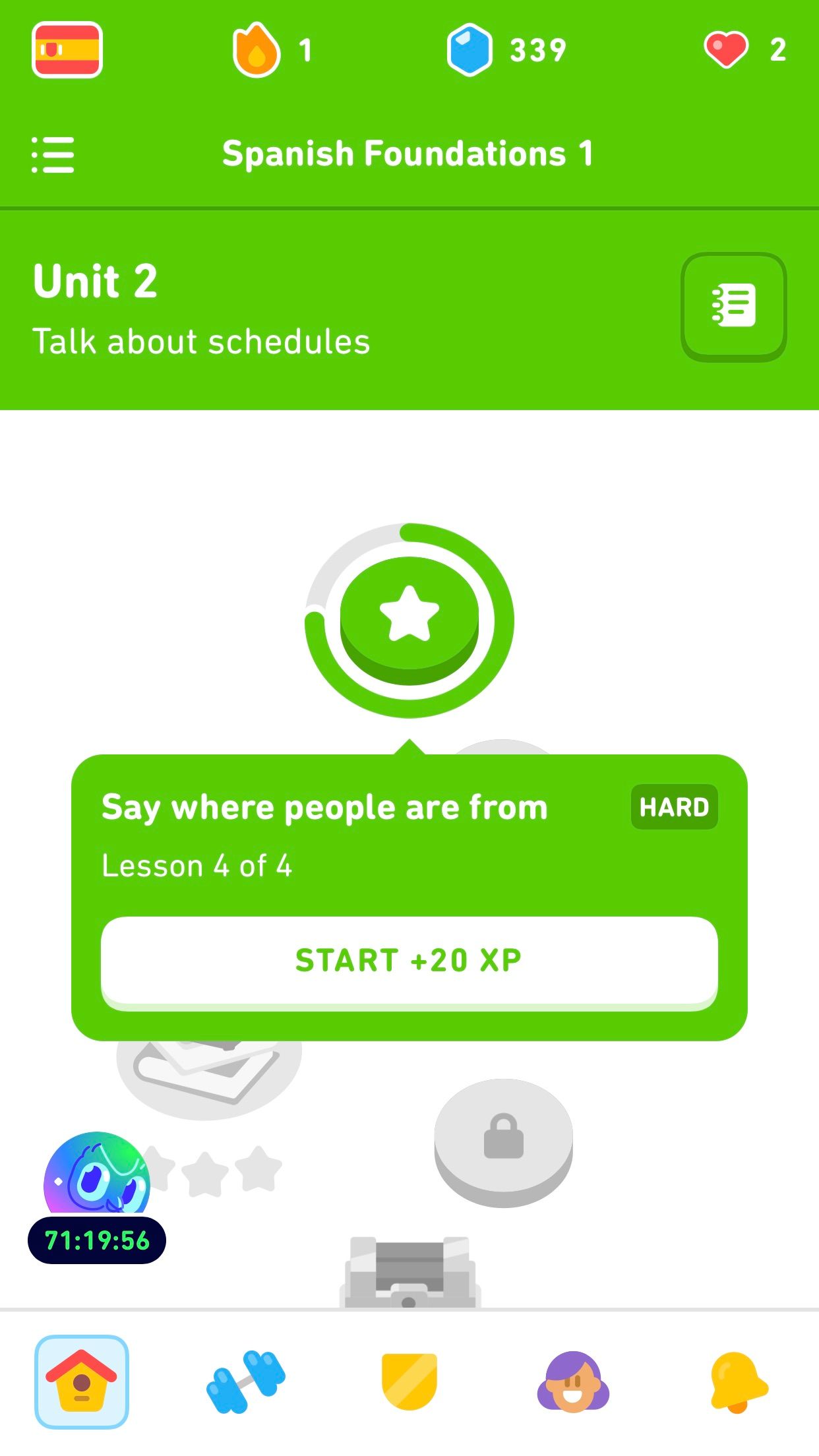
How to Access Practice Mode in Duolingo
To access Practice Mode in Duolingo, follow these steps:
- Open the Duolingo app or website and log in to your account.
- Navigate to the home screen where your language course is displayed.
- Look for the Practice button, which is usually represented by a dumbbell icon or labeled as Practice.
- Click or tap on the Practice button to start reviewing previously learned material.
What Does Practice Mode Include?
Practice Mode in Duolingo focuses on reinforcing your knowledge by revisiting previously completed lessons. Here’s what it includes:
See AlsoHOW TO - Communicate with your Chinese In-Laws (Phrases & Tips)- Review of vocabulary and phrases from past lessons.
- Repetition of grammar rules and sentence structures.
- Mixed exercises, including listening, speaking, and translation tasks.
Benefits of Using Practice Mode
Using Practice Mode regularly can significantly improve your language skills. Here are the key benefits:
- Helps reinforce long-term memory of words and phrases.
- Improves accuracy in grammar and sentence construction.
- Boosts confidence by revisiting familiar content.
How to Maximize Practice Mode Efficiency
To get the most out of Practice Mode, consider these tips:
- Set a daily goal for practice sessions to maintain consistency.
- Focus on areas where you feel less confident, such as listening or speaking.
- Use the heart system wisely to avoid running out of lives during practice.
Differences Between Practice Mode and Regular Lessons
Practice Mode differs from regular lessons in several ways. Here’s how:
- Practice Mode focuses on reviewing material, while regular lessons introduce new content.
- It includes a mix of exercise types to reinforce learning.
- Practice Mode does not contribute to your streak or XP in the same way as regular lessons.
What is smart scheduling Duolingo free?

What is Smart Scheduling in Duolingo Free?
Smart Scheduling in Duolingo Free is a feature designed to optimize your language learning experience by personalizing your study schedule. It uses algorithms to analyze your progress, strengths, and weaknesses, then suggests the best times and topics for you to review or learn new material. This ensures that you retain information more effectively and avoid burnout.
- Personalized Learning: Adapts to your pace and learning style.
- Efficient Review: Focuses on areas where you need improvement.
- Time Management: Helps you balance learning with your daily routine.
How Does Smart Scheduling Work in Duolingo Free?
Smart Scheduling works by tracking your activity on the app, such as the lessons you complete, mistakes you make, and the frequency of your practice. Based on this data, it creates a customized plan that prioritizes topics you struggle with and schedules reviews at optimal intervals to reinforce your memory.
- Data Analysis: Monitors your progress and performance.
- Adaptive Reminders: Sends notifications for timely reviews.
- Dynamic Adjustments: Updates your schedule as you improve.
Benefits of Using Smart Scheduling in Duolingo Free
The benefits of Smart Scheduling include improved retention, efficient learning, and a balanced study routine. By focusing on your weak areas and spacing out reviews, it helps you learn faster and remember more without feeling overwhelmed.
- Enhanced Memory: Spaced repetition improves long-term retention.
- Focused Learning: Targets your specific needs.
- Flexibility: Adapts to your availability and preferences.
Is Smart Scheduling Available in Duolingo Free?
Yes, Smart Scheduling is available in the free version of Duolingo. While some advanced features may require a subscription, the core functionality of Smart Scheduling is accessible to all users, making it a valuable tool for budget-conscious learners.
- Free Access: No payment required for basic scheduling.
- Premium Features: Additional tools available for subscribers.
- Universal Use: Works across all devices and platforms.
How to Enable Smart Scheduling in Duolingo Free
To enable Smart Scheduling in Duolingo Free, simply activate notifications in the app settings and ensure you complete lessons regularly. The app will automatically start analyzing your progress and suggesting the best times for you to study.
- Enable Notifications: Turn on reminders in settings.
- Regular Practice: Complete lessons consistently.
- Follow Suggestions: Adhere to the app's study recommendations.
How to practice listening on Duolingo?
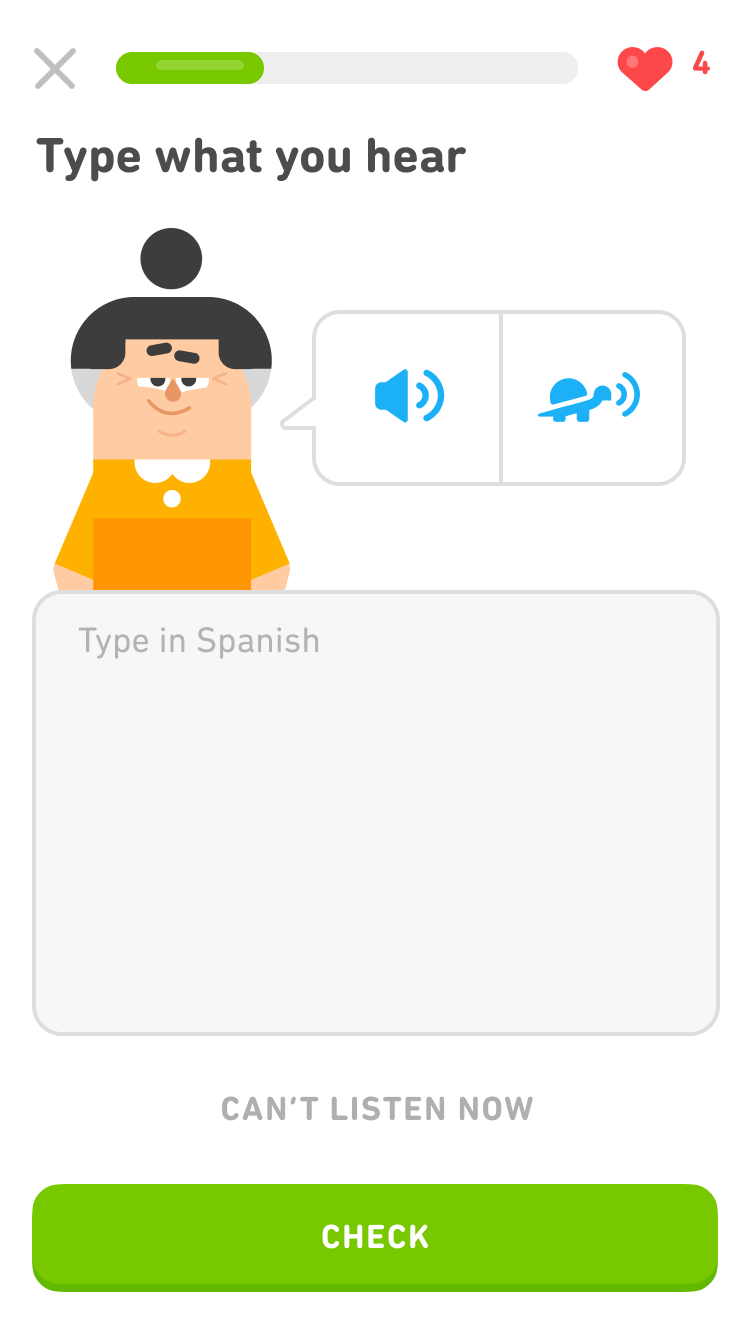
How to Use Duolingo's Listening Exercises Effectively
Duolingo offers a variety of listening exercises designed to improve your comprehension skills. To make the most of these exercises:
- Start with beginner levels to build a strong foundation and gradually move to more advanced exercises.
- Repeat sentences out loud after listening to reinforce your understanding and pronunciation.
- Use headphones to focus better and avoid distractions while practicing.
How to Leverage Duolingo Stories for Listening Practice
Duolingo Stories are an excellent resource for improving listening skills. Here’s how to use them effectively:
- Listen first without reading the text to test your comprehension.
- Replay the story while reading along to connect spoken words with their written forms.
- Answer the comprehension questions to ensure you’ve understood the key points.
How to Practice Listening with Duolingo Podcasts
Duolingo Podcasts are ideal for intermediate and advanced learners. Follow these steps to maximize their benefits:
- Choose episodes that match your current language level.
- Listen actively by taking notes on key phrases or vocabulary.
- Replay challenging sections to improve your understanding of fast speech or complex sentences.
How to Use Duolingo's Speaking and Listening Exercises Together
Combining speaking and listening exercises on Duolingo can enhance your overall language skills. Here’s how:
- Listen to a sentence and then repeat it aloud to practice pronunciation and comprehension.
- Record yourself speaking and compare it to the original audio to identify areas for improvement.
- Focus on intonation and rhythm to sound more natural when speaking.
How to Track Your Listening Progress on Duolingo
Monitoring your progress is essential for staying motivated. Use these tips to track your listening skills:
- Check your skill levels in the listening exercises to see your improvement over time.
- Review mistakes in the practice sessions to understand where you need more focus.
- Set weekly goals for completing listening exercises to maintain consistency.
Frequently Asked Questions From our Community
How do I enable the practice reminder on Duolingo?
To enable the practice reminder on Duolingo, open the app and navigate to your profile by tapping on your profile icon. From there, go to the Settings menu. Look for the option labeled Notifications or Reminders. Toggle the switch next to Practice Reminder to turn it on. You can also customize the time and frequency of the reminders to suit your schedule.
Can I set a specific time for the practice reminder?
Yes, you can set a specific time for the practice reminder on Duolingo. After enabling the reminder in the Settings menu, you will be prompted to choose a time that works best for you. Select your preferred time from the available options, and Duolingo will send you a notification at that time every day to remind you to practice.
What happens if I miss a practice reminder?
If you miss a practice reminder, Duolingo will not send another notification until the next scheduled time. However, you can always open the app and start practicing at any time, even without a reminder. The reminders are designed to help you build a consistent habit, but they are not mandatory for using the app.
Can I turn off the practice reminder if I no longer need it?
Yes, you can easily turn off the practice reminder if you no longer need it. Go to the Settings menu in your Duolingo profile, find the Notifications or Reminders section, and toggle the switch next to Practice Reminder to turn it off. This will stop all future reminders from being sent to your device.
Leave a Reply
Related Posts