
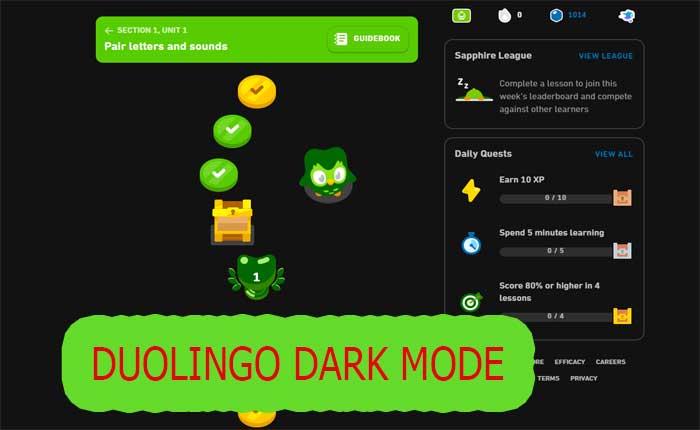
How To Enable Duolingo Dark Mode On Android & PC? Easily In 2025


Duolingo, the popular language-learning platform, has become a go-to resource for millions of users worldwide. As screen time increases, many seek ways to reduce eye strain, especially during late-night study sessions. Dark mode, a feature that switches the interface to a darker color scheme, has gained popularity for its aesthetic appeal and potential health benefits. In 2025, enabling Duolingo’s dark mode on Android and PC is easier than ever, offering a seamless transition for users. This article provides a step-by-step guide to activating this feature, ensuring a comfortable and visually pleasing experience while mastering new languages. Stay tuned to learn how to make the switch effortlessly.
How To Enable Duolingo Dark Mode On Android & PC? Easily In 2025
What Is Duolingo Dark Mode And Why Use It?
Duolingo Dark Mode is a feature that changes the app's interface to a darker color scheme, reducing eye strain, especially in low-light environments. It also helps conserve battery life on devices with OLED or AMOLED screens. This mode is particularly useful for users who spend extended periods learning languages on the platform.
How To Enable Duolingo Dark Mode On Android In 2025
To enable Duolingo Dark Mode on Android, follow these steps:
1. Open the Duolingo app on your Android device.
2. Tap on the Profile icon in the bottom-right corner.
3. Go to Settings (gear icon).
4. Scroll down and find the Dark Mode option.
5. Toggle the switch to enable Dark Mode.
How To Enable Duolingo Dark Mode On PC In 2025
Enabling Duolingo Dark Mode on a PC is straightforward:
1. Open your web browser and go to the Duolingo website.
2. Log in to your account.
3. Click on your Profile icon in the top-right corner.
4. Select Settings from the dropdown menu.
5. Look for the Dark Mode option and toggle it on.
Benefits Of Using Duolingo Dark Mode
Using Duolingo Dark Mode offers several advantages:
- Reduces eye strain in low-light conditions.
- Improves focus by minimizing distractions.
- Saves battery on devices with OLED/AMOLED screens.
- Enhances readability for some users.
Troubleshooting Duolingo Dark Mode Issues
If you encounter issues with Duolingo Dark Mode, try these solutions:
- Ensure your app or browser is updated to the latest version.
- Restart your device or browser.
- Clear the app's cache or browser cookies.
- Check if your device's system-wide Dark Mode is conflicting with the app.
| Platform | Steps to Enable Dark Mode |
|---|---|
| Android | Profile Icon > Settings > Dark Mode Toggle |
| PC | Profile Icon > Settings > Dark Mode Toggle |
How to get dark mode on Duolingo Android?

How to Enable Dark Mode on Duolingo Android
To enable dark mode on Duolingo for Android, follow these steps:
- Open the Duolingo app on your Android device.
- Tap on your profile icon located in the top-right corner of the screen.
- Select Settings from the dropdown menu.
- Scroll down and look for the Theme option.
- Choose Dark Mode to activate it.
Why Use Dark Mode on Duolingo Android?
Using dark mode on Duolingo Android offers several benefits:
See AlsoExplore in Chinese - 3 Best Ways to Say it- Reduces eye strain in low-light environments.
- Saves battery life on devices with OLED or AMOLED screens.
- Provides a modern and sleek appearance to the app interface.
What to Do If Dark Mode Is Not Available?
If the dark mode option is not visible in your Duolingo app, consider the following:
- Ensure your Duolingo app is updated to the latest version from the Google Play Store.
- Check if your Android device supports system-wide dark mode, as Duolingo may sync with this setting.
- Restart the app or your device to refresh the settings.
How to Sync Dark Mode with Android System Settings
To sync dark mode with your Android system settings:
- Go to your Android device's Settings menu.
- Navigate to Display or Themes.
- Enable Dark Theme or Night Mode.
- Open Duolingo, and it should automatically switch to dark mode if supported.
Tips for Customizing Dark Mode on Duolingo Android
For a better experience with dark mode, consider these tips:
See AlsoThe most serious mistake students make when learning Mandarin pronunciation- Adjust your device's brightness to complement dark mode.
- Use blue light filters for additional eye comfort.
- Experiment with accessibility settings to enhance readability.
How to make Duolingo dark mode on PC?
How to Enable Dark Mode on Duolingo Using Browser Extensions
To enable dark mode on Duolingo using browser extensions, follow these steps:
- Install a dark mode extension like Dark Reader from your browser's extension store.
- Open the extension and enable it for the Duolingo website.
- Adjust the settings to ensure the text and interface remain readable.
How to Use Duolingo Dark Mode with Browser Developer Tools
If you prefer not to use extensions, you can enable dark mode using browser developer tools:
See AlsoDuolingo Quests Guide: Daily, Friend & Monthly Challenges 2025- Right-click on the Duolingo webpage and select Inspect.
- Navigate to the Console tab in the developer tools.
- Enter custom CSS code to invert colors or apply a dark theme manually.
How to Enable Dark Mode on Duolingo via System-Wide Settings
If your PC supports system-wide dark mode, you can apply it to Duolingo:
- Go to your PC's Settings and enable dark mode.
- Ensure your browser is set to follow system theme settings.
- Refresh the Duolingo website to see the changes.
How to Use Duolingo Dark Mode with Custom CSS
For advanced users, applying custom CSS can help achieve a dark mode:
- Install a browser extension like Stylus to inject custom CSS.
- Create or download a dark mode CSS script for Duolingo.
- Apply the script to the Duolingo website using the extension.
How to Enable Dark Mode on Duolingo with Third-Party Apps
Some third-party apps can help you enable dark mode on Duolingo:
- Download a third-party app like f.lux or Night Eye.
- Configure the app to apply a dark theme to your browser.
- Open Duolingo and enjoy the dark mode interface.
Can I force an app into dark mode?
Can I Force an App into Dark Mode on Android?
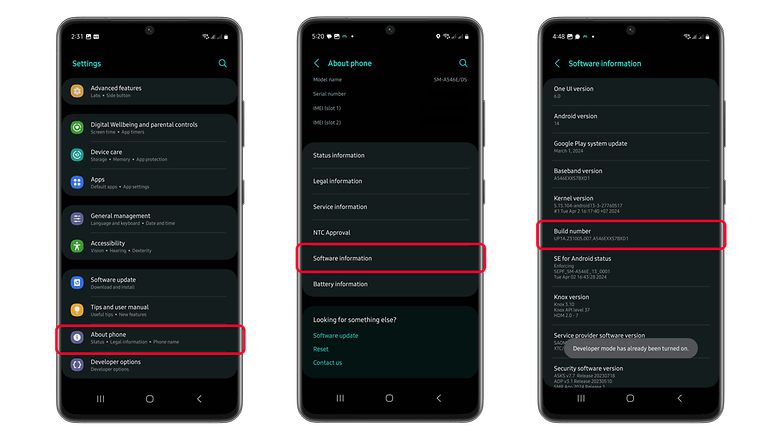
Yes, you can force an app into dark mode on Android by enabling the system-wide dark theme or using developer options. Here’s how:
- Go to Settings > Display > Dark theme to enable dark mode system-wide.
- If the app doesn’t support dark mode, enable Developer options and activate Override force-dark to force dark mode on unsupported apps.
- Some apps may not render correctly, so test and adjust settings as needed.
Can I Force an App into Dark Mode on iOS?
On iOS, you can enable dark mode system-wide, but forcing unsupported apps into dark mode is limited. Here’s what you can do:
- Go to Settings > Display & Brightness and select Dark to enable dark mode.
- Apps that support dark mode will automatically switch, but unsupported apps will remain in light mode.
- For unsupported apps, consider using third-party tools or waiting for app updates.
How to Force Dark Mode on Windows Apps?
Windows allows you to enable dark mode for the system and some apps, but forcing unsupported apps is tricky. Follow these steps:
- Go to Settings > Personalization > Colors and select Dark under Choose your color.
- Some apps, like Microsoft Edge, will switch to dark mode automatically.
- For unsupported apps, use third-party tools like Registry Editor or third-party software to force dark mode.
Can I Force Dark Mode on macOS Apps?
On macOS, you can enable dark mode system-wide, but forcing unsupported apps is not straightforward. Here’s how to proceed:
- Go to System Preferences > General and select Dark under Appearance.
- Apps that support dark mode will switch automatically, but unsupported apps will remain in light mode.
- For unsupported apps, consider using third-party tools or waiting for app updates.
Are There Third-Party Tools to Force Dark Mode?
Yes, there are third-party tools that can help you force dark mode on unsupported apps. Here are some options:
- Dark Reader: A browser extension that forces dark mode on websites and some web apps.
- Night Eye: Another browser extension that applies dark mode to unsupported websites and apps.
- f.lux: A tool that adjusts screen colors and can simulate dark mode for some apps.
Why is Duolingo dark?
Why Does Duolingo Have a Dark Mode?
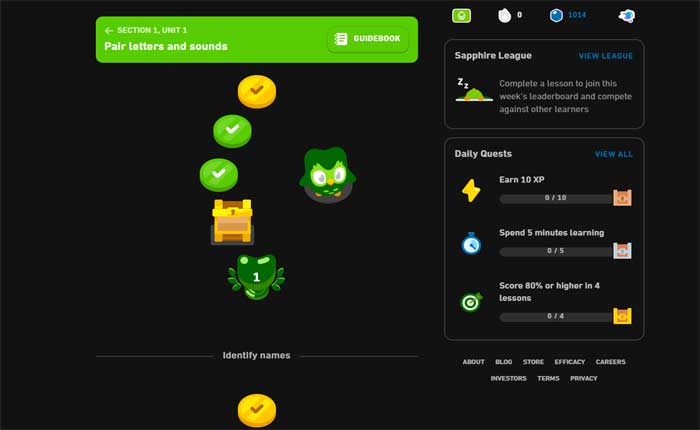
Duolingo offers a dark mode to enhance user experience by reducing eye strain, especially in low-light environments. This feature is particularly useful for users who spend extended periods learning languages on the app. The dark mode also helps conserve battery life on devices with OLED or AMOLED screens.
- Eye Comfort: Dark mode reduces blue light exposure, making it easier on the eyes during nighttime or dimly lit settings.
- Battery Efficiency: On devices with OLED screens, dark mode consumes less power, extending battery life.
- Aesthetic Preference: Many users prefer the sleek and modern look of dark mode over the traditional light theme.
How to Enable Dark Mode on Duolingo
Enabling dark mode on Duolingo is straightforward and can be done through the app's settings. This feature is available on both mobile and desktop versions, ensuring a consistent experience across devices.
- Mobile App: Go to the profile section, tap on the settings icon, and toggle the dark mode option.
- Desktop Version: Access settings from the profile dropdown menu and switch to dark mode.
- Automatic Switching: Some devices allow automatic switching between light and dark modes based on system settings.
Benefits of Using Dark Mode on Duolingo
Using dark mode on Duolingo provides several advantages, from improving focus to enhancing usability in various lighting conditions. It is a popular choice among users who value both functionality and aesthetics.
- Improved Focus: Dark backgrounds minimize distractions, helping users concentrate better on their lessons.
- Reduced Glare: Dark mode reduces screen glare, making it easier to read text in bright environments.
- Customization: It allows users to personalize their learning experience according to their preferences.
Dark Mode and Accessibility on Duolingo
Duolingo's dark mode is not just a design choice but also an accessibility feature. It caters to users with visual impairments or sensitivity to bright screens, ensuring inclusivity.
- Visual Impairments: Dark mode can make text more readable for users with certain visual conditions.
- Light Sensitivity: It is beneficial for users who experience discomfort or migraines from bright screens.
- Universal Design: Dark mode aligns with accessibility standards, making the app more user-friendly for everyone.
Dark Mode Trends in Language Learning Apps
The inclusion of dark mode in Duolingo reflects a broader trend in language learning apps. Many competitors have adopted this feature to meet user demands for customizable and comfortable interfaces.
- User Demand: Dark mode has become a highly requested feature across various apps.
- Industry Standards: Leading apps like Babbel and Memrise also offer dark mode to stay competitive.
- Future Developments: As technology evolves, dark mode may include additional customization options for users.
Frequently Asked Questions From our Community
How do I enable Duolingo Dark Mode on Android?
To enable Duolingo Dark Mode on Android, open the Duolingo app and navigate to your profile by tapping on the profile icon in the bottom right corner. From there, go to Settings and look for the Theme option. Select Dark Mode to switch the interface to a darker theme. If the option is not available, ensure your app is updated to the latest version, as this feature may depend on the app's current release.
Can I enable Duolingo Dark Mode on my PC?
Yes, you can enable Duolingo Dark Mode on your PC by accessing Duolingo through a web browser. Once logged in, click on your profile picture in the top right corner and select Settings. Look for the Theme option and choose Dark Mode. If the option is not visible, try using a browser extension that forces dark mode on websites or check if your browser has a built-in dark mode feature.
Why can't I find the Dark Mode option in Duolingo?
If you cannot find the Dark Mode option in Duolingo, it may be because your app or browser version is outdated. Ensure you have the latest version of the Duolingo app installed on your Android device or that you are using an updated browser on your PC. Additionally, Duolingo may roll out features like Dark Mode gradually, so it might not be available to all users immediately. Keep checking for updates to access this feature.
Does Duolingo Dark Mode save battery on Android?
Yes, enabling Duolingo Dark Mode on Android can help save battery life, especially if your device has an OLED or AMOLED screen. These screens turn off individual pixels to display true black, reducing power consumption. While the impact may vary depending on your usage and device, using Dark Mode generally contributes to better battery efficiency, especially during extended learning sessions on Duolingo.
Leave a Reply
Related Posts