
How To Add Duolingo Widget To Lock Screen: Easy Guide


Learning a new language has never been more accessible, thanks to apps like Duolingo. With its engaging lessons and bite-sized exercises, Duolingo makes language learning fun and convenient. Now, you can take your learning experience to the next level by adding the Duolingo widget to your lock screen. This simple yet powerful feature allows you to access quick lessons, track your progress, and stay motivated without even unlocking your phone. Whether you're a beginner or a seasoned learner, this guide will walk you through the easy steps to integrate the Duolingo widget into your lock screen, ensuring your language goals are always within reach.
How To Add Duolingo Widget To Lock Screen: Easy Guide
1. What is the Duolingo Widget?
The Duolingo Widget is a handy tool that allows users to access their language learning progress directly from their device's lock screen or home screen. It provides quick updates on daily goals, streaks, and lessons, making it easier to stay motivated and consistent with your language learning journey.
2. Why Should You Add the Duolingo Widget to Your Lock Screen?
Adding the Duolingo Widget to your lock screen ensures that you never miss a day of practice. It serves as a constant reminder to complete your daily lessons and helps you track your progress effortlessly. This feature is especially useful for busy individuals who want to integrate language learning into their daily routine without opening the app repeatedly.
See AlsoInterview: Insights from Skritter’s Complete Guide to Learning Chinese3. Step-by-Step Guide to Adding the Duolingo Widget
To add the Duolingo Widget to your lock screen, follow these steps:
1. Unlock your device and navigate to the home screen.
2. Long-press on an empty area of the screen to enter widget customization mode.
3. Tap on the Widgets option and search for Duolingo.
4. Select the Duolingo Widget size and style that suits your preference.
5. Drag and drop the widget to your desired location on the lock screen or home screen.
6. Save your changes and enjoy quick access to your language learning progress.
4. Troubleshooting Common Issues
If you encounter issues while adding the Duolingo Widget, consider the following solutions:
- Ensure your Duolingo app is updated to the latest version.
- Check if your device's operating system supports widgets on the lock screen.
- Restart your device and try adding the widget again.
- If the widget doesn't appear, reinstall the Duolingo app and repeat the steps.
5. Customizing the Duolingo Widget for Better Usability
You can customize the Duolingo Widget to display specific information, such as:
- Daily streaks
- XP progress
- Lesson reminders
To customize, long-press the widget and select Edit Widget. Choose the data you want to display and save your preferences.
| Feature | Description |
|---|---|
| Daily Streaks | Track your consecutive days of learning. |
| XP Progress | Monitor your experience points earned. |
| Lesson Reminders | Get notified about pending lessons. |
How do I add apps to my Lock Screen widget?
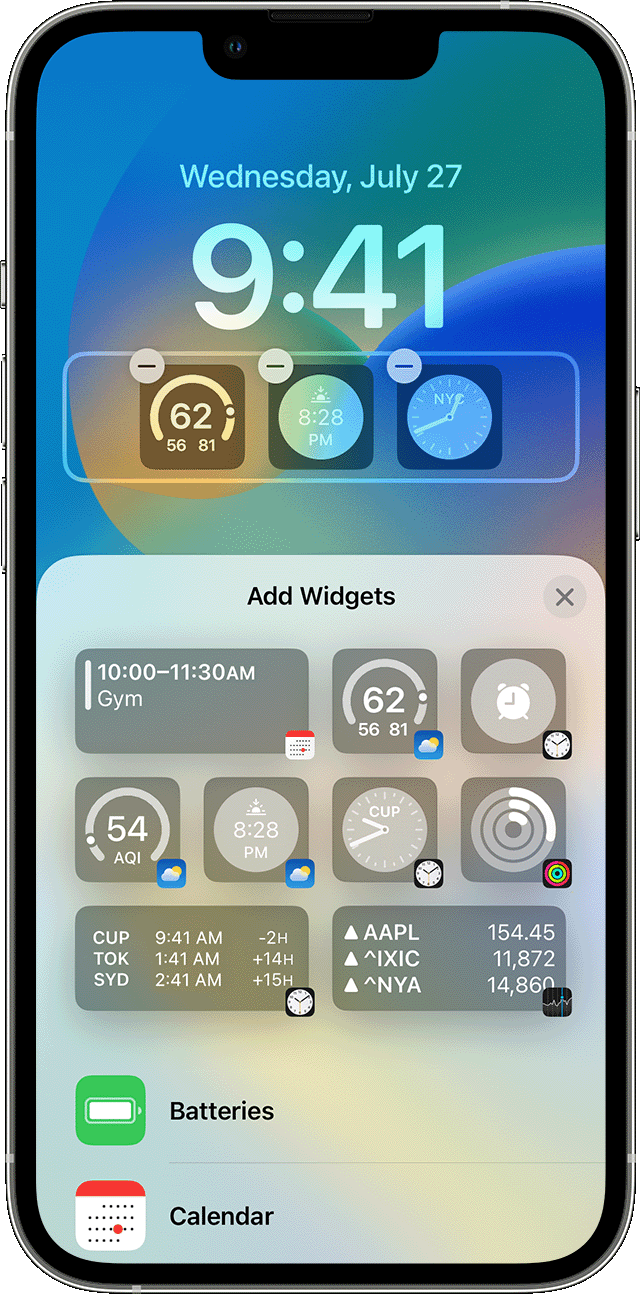
How to Add Apps to Your Lock Screen Widget on iPhone
To add apps to your Lock Screen widget on an iPhone, follow these steps:
- Unlock your iPhone and long-press on the Lock Screen to enter customization mode.
- Tap Customize to access the widget editing options.
- Select Lock Screen and then choose the widget area you want to edit.
- Scroll through the available widgets and tap the + button to add a widget for a specific app.
- Once added, press Done to save your changes.
How to Customize Lock Screen Widgets on Android
To add apps to your Lock Screen widget on an Android device, follow these steps:
See AlsoAccessing Chinese culture through cartoons- Unlock your Android device and go to the Settings menu.
- Navigate to Display and then select Lock Screen settings.
- Choose Widgets or Shortcuts depending on your device model.
- Select the app you want to add and customize its placement on the Lock Screen.
- Save your changes by tapping Apply or Done.
How to Remove Apps from Your Lock Screen Widget
If you want to remove apps from your Lock Screen widget, follow these steps:
- Access the customization mode by long-pressing on the Lock Screen.
- Tap on the widget you want to remove.
- Select the Remove or Delete option.
- Confirm the removal by pressing Done or Save.
How to Rearrange Lock Screen Widgets
To rearrange widgets on your Lock Screen, follow these steps:
- Enter customization mode by long-pressing on the Lock Screen.
- Tap and hold the widget you want to move.
- Drag the widget to your desired location on the Lock Screen.
- Release the widget and press Done to save the new arrangement.
How to Troubleshoot Lock Screen Widget Issues
If you encounter issues with Lock Screen widgets, try these troubleshooting steps:
- Restart your device to refresh the system.
- Ensure your device is running the latest software update.
- Check if the app you want to add supports Lock Screen widgets.
- Re-add the widget by following the customization steps again.
- If the issue persists, contact customer support for further assistance.
How do I add widgets to my Lock Screen list?
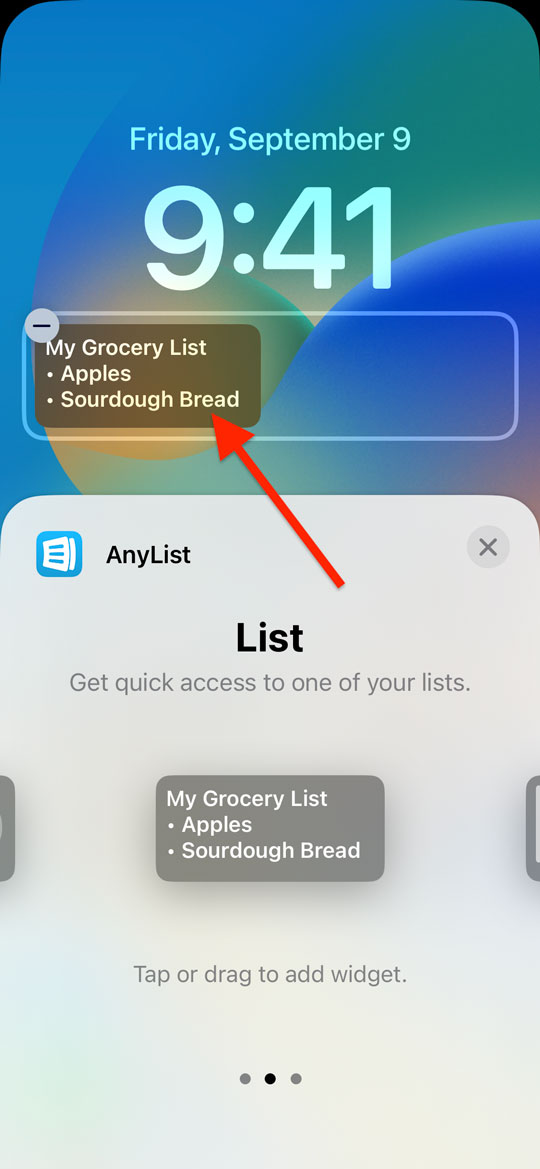
To add widgets to your Lock Screen, you first need to access the widget customization menu. Follow these steps:
- Press and hold on the Lock Screen until it enters edit mode.
- Tap on the Customize button, usually located at the bottom of the screen.
- Select the Widgets option to open the widget customization menu.
Choosing the Right Widgets for Your Lock Screen
Once you are in the widget customization menu, you can choose from a variety of widgets to add to your Lock Screen. Here’s how:
- Scroll through the available widgets to see your options.
- Tap on a widget to preview how it will look on your Lock Screen.
- Select the widget that best suits your needs and preferences.
Adding Widgets to Your Lock Screen
After selecting the desired widgets, you can add them to your Lock Screen by following these steps:
- Drag and drop the selected widget to your preferred location on the Lock Screen.
- Adjust the size of the widget if necessary by using the resize handles.
- Confirm your selection by tapping Done or Save.
Customizing Widget Layout and Appearance
To ensure your Lock Screen looks exactly how you want it, you can customize the layout and appearance of the widgets:
- Rearrange widgets by dragging them to different positions on the screen.
- Change the color or style of widgets if the option is available.
- Remove any widgets you no longer want by tapping the Remove or Delete option.
Saving and Applying Your Lock Screen Changes
Once you have added and customized your widgets, you need to save and apply the changes to your Lock Screen:
- Review your Lock Screen to ensure everything is set up correctly.
- Tap Done or Apply to save your changes.
- Exit the customization menu and lock your device to see the new widgets in action.
How do I add a custom widget to my home screen?
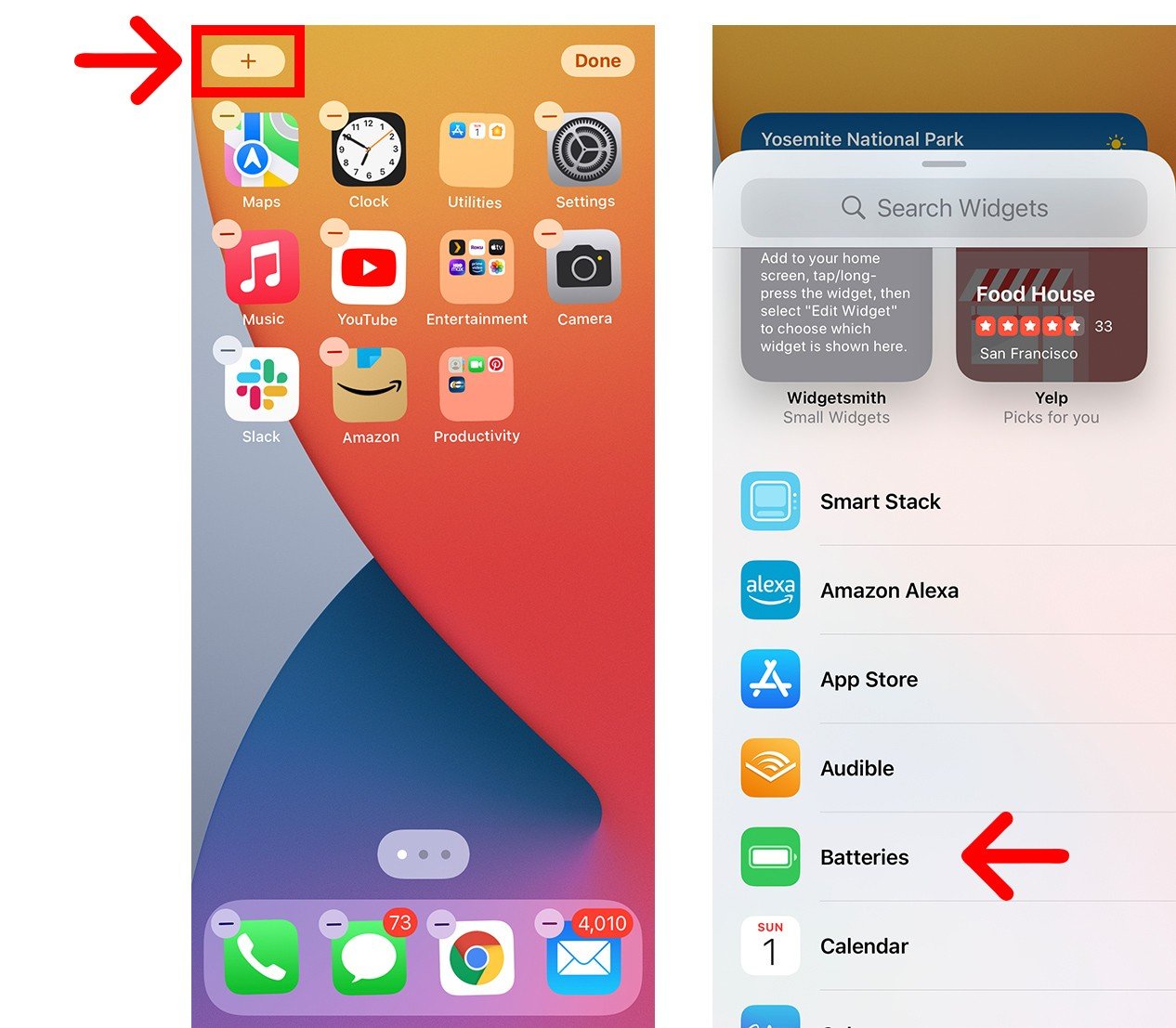
How to Add a Custom Widget on Android
To add a custom widget to your home screen on an Android device, follow these steps:
- Long-press on an empty area of your home screen until a menu appears.
- Select the Widgets option from the menu.
- Scroll through the list of available widgets and tap on the one you want to add.
- Drag the widget to your desired location on the home screen and release it.
- Resize or customize the widget if prompted by the app.
How to Add a Custom Widget on iOS
Adding a custom widget to your home screen on an iOS device involves these steps:
- Long-press on an empty area of your home screen to enter Jiggle Mode.
- Tap the + icon in the top-left corner to open the widget gallery.
- Browse or search for the widget you want to add, then select it.
- Choose the widget size and tap Add Widget.
- Drag the widget to your preferred location and tap Done.
Customizing Widgets on Android
To customize a widget on Android, follow these instructions:
- Long-press the widget on your home screen to select it.
- Tap the Settings or Edit option that appears.
- Adjust the widget's settings, such as color, size, or displayed information.
- Save your changes and exit the customization menu.
Customizing Widgets on iOS
Customizing widgets on iOS is straightforward:
- Long-press the widget on your home screen to enter Edit Mode.
- Select Edit Widget to access customization options.
- Modify the widget's appearance or functionality as needed.
- Tap outside the widget to save your changes.
Using Third-Party Apps for Custom Widgets
If you want to use third-party apps to create custom widgets, here’s how:
- Download a widget-making app like KWGT for Android or Widgetsmith for iOS.
- Open the app and follow the instructions to design your widget.
- Save the widget and add it to your home screen using the steps above.
- Customize further if the app allows additional settings.
Frequently Asked Questions From our Community
What is a Duolingo widget, and why should I add it to my lock screen?
A Duolingo widget is a small, interactive feature that allows you to access your language learning progress directly from your device's home or lock screen. By adding it to your lock screen, you can quickly view your daily streak, upcoming lessons, or practice reminders without unlocking your phone. This makes it easier to stay consistent with your language learning goals and ensures you never miss a day of practice.
How do I add the Duolingo widget to my lock screen on an iPhone?
To add the Duolingo widget to your lock screen on an iPhone, first, ensure your device is updated to iOS 16 or later. Press and hold your lock screen, then tap Customize. Select the lock screen you want to edit, tap Add Widgets, and search for the Duolingo widget. Once found, select it and adjust its size and position. Finally, tap Done to save your changes. The widget will now appear on your lock screen.
Can I add the Duolingo widget to my Android lock screen?
Yes, you can add the Duolingo widget to your Android lock screen, but the process may vary depending on your device model and Android version. Generally, you need to enable widgets on your lock screen through your device's settings. Go to Settings > Lock Screen > Widgets, and enable the option. Then, customize your lock screen and add the Duolingo widget from the available options. If your device doesn’t support lock screen widgets, consider adding the widget to your home screen instead.
What should I do if the Duolingo widget isn’t showing up on my lock screen?
If the Duolingo widget isn’t appearing on your lock screen, first ensure that your app and device software are up to date. Check if your device supports lock screen widgets, as some older models may not have this feature. If the issue persists, try restarting your device or reinstalling the Duolingo app. Additionally, make sure you’ve granted the necessary permissions for widgets in your device settings. If none of these steps work, contact Duolingo support for further assistance.
Leave a Reply
Related Posts