
Why My Duolingo Mic Not Working? Quick Fixes & Solutions


Duolingo has become a popular tool for language learners, offering interactive exercises that often require the use of a microphone for speaking practice. However, many users encounter issues where their Duolingo mic stops working, disrupting their learning experience. This problem can stem from various causes, such as browser settings, app permissions, or hardware malfunctions. Understanding the root of the issue is essential to finding a quick and effective solution. In this article, we explore common reasons why your Duolingo microphone might not be functioning and provide practical fixes to help you get back to practicing your language skills without interruption.
Why My Duolingo Mic Not Working? Quick Fixes & Solutions
1. Check Microphone Permissions
If your Duolingo microphone is not working, the first step is to ensure that the app has the necessary permissions to access your device's microphone. On Android, go to Settings > Apps > Duolingo > Permissions and enable the microphone. On iOS, navigate to Settings > Privacy > Microphone and make sure Duolingo is toggled on. Without these permissions, the app cannot use your microphone.
2. Test Your Microphone
Sometimes the issue might not be with Duolingo but with your device's microphone. Test your microphone by using another app that requires audio input, such as a voice recorder or a video call app. If the microphone doesn't work in other apps, the problem could be hardware-related. In such cases, restart your device or check for any physical damage to the microphone.
See AlsoChinese listening strategies: Passive listening3. Update the Duolingo App
An outdated version of the Duolingo app can cause microphone issues. Ensure you have the latest version installed by visiting the Google Play Store or Apple App Store. Developers frequently release updates to fix bugs and improve performance, including microphone functionality.
4. Clear Cache and Data
Corrupted cache or data can interfere with Duolingo's microphone feature. To resolve this, clear the app's cache and data. On Android, go to Settings > Apps > Duolingo > Storage > Clear Cache/Clear Data. On iOS, you may need to uninstall and reinstall the app. This process will reset the app and often resolves technical glitches.
5. Check Internet Connection
A stable internet connection is crucial for Duolingo's microphone feature to work properly. If your connection is weak or unstable, the app may fail to process your voice input. Switch to a stronger Wi-Fi network or enable mobile data to see if the issue persists.
See AlsoSensible Chinese character learning revisited| Issue | Solution |
|---|---|
| Microphone permissions not granted | Enable microphone access in device settings |
| Microphone hardware issue | Test microphone with other apps or restart device |
| Outdated Duolingo app | Update the app via Play Store or App Store |
| Corrupted cache/data | Clear cache and data or reinstall the app |
| Unstable internet connection | Switch to a stronger Wi-Fi or mobile data network |
Why won't my Duolingo mic work?

Why is my Duolingo microphone not working?
If your Duolingo microphone is not working, it could be due to several reasons. Here are some common causes and solutions:
- Microphone Permissions: Ensure that Duolingo has permission to access your device's microphone. Go to your device settings and check the app permissions.
- Browser Issues: If you're using Duolingo on a browser, make sure it supports microphone access. Try switching to a different browser like Chrome or Firefox.
- Device Settings: Check your device's microphone settings to ensure it is not muted or disabled. Sometimes, system updates can reset these settings.
How to fix microphone issues on Duolingo?
To resolve microphone issues on Duolingo, follow these steps:
See Also12 ways chatting online will improve your Chinese- Restart the App: Close and reopen the Duolingo app to refresh its settings and permissions.
- Update the App: Ensure you are using the latest version of Duolingo, as updates often fix bugs and improve functionality.
- Check Internet Connection: A stable internet connection is crucial for microphone functionality. Ensure your connection is strong and stable.
Why does Duolingo not recognize my voice?
If Duolingo is not recognizing your voice, consider the following:
- Microphone Quality: Poor microphone quality can affect voice recognition. Use a better-quality microphone if possible.
- Background Noise: Excessive background noise can interfere with voice recognition. Try speaking in a quieter environment.
- Pronunciation: Ensure you are pronouncing words clearly and correctly. Duolingo's voice recognition is sensitive to pronunciation accuracy.
How to enable microphone access for Duolingo?
To enable microphone access for Duolingo, follow these steps:
- Device Settings: Go to your device's settings and navigate to the app permissions section.
- Grant Permissions: Find Duolingo in the list of apps and ensure the microphone permission is enabled.
- Browser Settings: If using a browser, check the site settings and allow microphone access for Duolingo's website.
What to do if Duolingo microphone still doesn't work?
If the microphone still doesn't work after trying the above solutions, consider these additional steps:
- Reinstall the App: Uninstall and reinstall Duolingo to reset all settings and permissions.
- Contact Support: Reach out to Duolingo's support team for further assistance. They may provide specific solutions for your issue.
- Test on Another Device: Try using Duolingo on a different device to determine if the issue is with your device or the app itself.
Why does my Duolingo not let me speak?

Why is the speaking feature not available on my Duolingo account?
The speaking feature on Duolingo may not be available due to several reasons:
- Account Settings: Ensure that your account settings allow microphone access. If permissions are not granted, the app cannot record your voice.
- Device Compatibility: Some older devices may not support the speaking feature due to hardware limitations or outdated software.
- App Version: If you are using an outdated version of the Duolingo app, the speaking feature might not function properly. Updating the app can resolve this issue.
How to check if my microphone is working with Duolingo?
To verify if your microphone is functioning correctly with Duolingo, follow these steps:
- Device Settings: Go to your device's settings and check if the microphone is enabled for Duolingo.
- Test Microphone: Use another app that requires microphone access to ensure your microphone is working properly.
- App Permissions: Ensure that Duolingo has the necessary permissions to access your microphone.
Why does Duolingo skip speaking exercises?
Duolingo might skip speaking exercises for the following reasons:
- Adaptive Learning: The app uses adaptive learning algorithms that may skip exercises based on your performance and learning pace.
- Technical Issues: If there are technical issues with your device or the app, speaking exercises might be skipped.
- Course Design: Some courses may have fewer speaking exercises by design, focusing more on other skills like reading and writing.
How to enable speaking exercises on Duolingo?
To enable speaking exercises on Duolingo, follow these steps:
- Update App: Ensure you are using the latest version of the Duolingo app.
- Grant Permissions: Allow microphone access in your device settings for Duolingo.
- Check Course: Verify that the course you are taking includes speaking exercises.
What to do if Duolingo still doesn't let me speak?
If Duolingo still doesn't allow you to speak, consider the following actions:
- Reinstall App: Uninstall and reinstall the Duolingo app to resolve any potential software glitches.
- Contact Support: Reach out to Duolingo support for assistance with persistent issues.
- Check Internet Connection: Ensure you have a stable internet connection, as some features may not work properly without it.
Why is my Duolingo audio not working?

Check Your Device Volume Settings
If your Duolingo audio is not working, the first step is to ensure that your device's volume settings are properly configured. Here are some steps to follow:
- Check the volume buttons on your device to ensure the volume is turned up.
- Make sure your device is not on silent mode or Do Not Disturb mode.
- Test the audio by playing a video or song on your device to confirm the speakers are working.
Ensure Duolingo Has Audio Permissions
Duolingo requires specific permissions to access your device's audio. If these permissions are not granted, the audio may not work. Follow these steps:
- Go to your device's settings and navigate to app permissions.
- Find Duolingo in the list of apps and ensure that microphone and audio permissions are enabled.
- Restart the Duolingo app after granting the necessary permissions.
Update the Duolingo App
Using an outdated version of the Duolingo app can cause audio issues. To resolve this:
- Open your device's app store (Google Play Store or Apple App Store).
- Search for Duolingo and check if an update is available.
- If an update is available, install it and restart the app to see if the audio works.
Check Your Internet Connection
Duolingo relies on a stable internet connection to stream audio. If your connection is weak or unstable, the audio may not play. Here’s what to do:
- Test your internet connection by opening another app or website to ensure it is working.
- If using Wi-Fi, try switching to mobile data or vice versa.
- Restart your router or modem if the connection seems slow or unstable.
Clear Duolingo Cache and Data
Corrupted cache or data files can cause audio issues in Duolingo. To fix this:
- Go to your device's settings and select apps or application manager.
- Find Duolingo in the list and tap on storage.
- Select clear cache and clear data, then restart the app.
Why is my microphone mic not working?
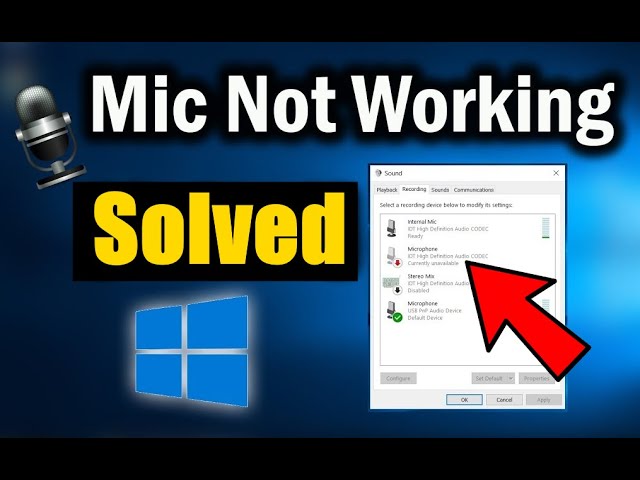
1. Microphone Hardware Issues
If your microphone is not working, the issue could be related to hardware problems. Here are some common hardware-related causes:
- Loose or damaged cables: Check if the microphone cable is properly connected or if it has any visible damage.
- Faulty microphone: The microphone itself might be defective or broken.
- Port issues: The audio jack or USB port you are using might be damaged or dirty.
2. Microphone Not Set as Default Device
Your microphone might not be working because it is not set as the default recording device. Follow these steps to check:
- Right-click the sound icon in the taskbar and select Sounds.
- Go to the Recording tab and ensure your microphone is listed and set as the default device.
- If not, right-click your microphone and select Set as Default Device.
3. Microphone Permissions Not Enabled
Your microphone might not work due to permission issues. Here’s how to check and enable microphone permissions:
- Open Settings and go to Privacy & Security.
- Select Microphone and ensure the toggle for Allow apps to access your microphone is turned on.
- Check individual app permissions to ensure they have access to the microphone.
4. Outdated or Corrupted Audio Drivers
Outdated or corrupted audio drivers can cause microphone issues. To resolve this:
- Open Device Manager and expand the Audio inputs and outputs section.
- Right-click your microphone and select Update driver.
- If updating doesn’t work, uninstall the driver and restart your computer to reinstall it automatically.
5. Microphone Muted or Volume Too Low
Your microphone might not be working because it is muted or the volume is too low. Here’s how to check:
- Right-click the sound icon in the taskbar and select Open Sound settings.
- Under Input, ensure the microphone is not muted and adjust the volume slider.
- Test the microphone by speaking into it and checking the input level.
Frequently Asked Questions From our Community
Why is my Duolingo microphone not working on my device?
If your Duolingo microphone is not working, it could be due to several reasons. First, ensure that your device's microphone permissions are enabled for the Duolingo app. Go to your device's settings, locate the app permissions, and make sure the microphone access is turned on. Additionally, check if your device's microphone is functioning properly by testing it with another app. If the issue persists, it might be a software glitch or an outdated app version. Try updating the Duolingo app or reinstalling it to resolve the problem.
How do I fix Duolingo microphone issues on an iPhone?
To fix Duolingo microphone issues on an iPhone, start by checking if the app has permission to access your microphone. Go to Settings > Privacy > Microphone and ensure Duolingo is toggled on. If the problem continues, restart your iPhone to clear any temporary glitches. You can also try updating the app or your iOS version, as outdated software can cause compatibility issues. If none of these steps work, consider contacting Duolingo support for further assistance.
What should I do if Duolingo microphone is not working on Android?
If the Duolingo microphone is not working on your Android device, first verify that the app has microphone permissions. Navigate to Settings > Apps > Duolingo > Permissions and enable the microphone. If the issue persists, clear the app's cache and data by going to Settings > Apps > Duolingo > Storage and selecting Clear Cache and Clear Data. Additionally, ensure your Android operating system and the Duolingo app are updated to the latest versions. If the problem remains, try using a different microphone or headset to rule out hardware issues.
Why does Duolingo say my microphone is not working even though it is?
If Duolingo claims your microphone is not working despite it functioning correctly, it could be due to a bug or compatibility issue. First, ensure your microphone is properly connected and functioning in other apps. If it works elsewhere, try restarting the Duolingo app or your device. Another possible cause is background noise or low microphone sensitivity, which can interfere with speech recognition. Adjust your microphone settings or move to a quieter environment. If the issue persists, report it to Duolingo's support team, as it might require a technical fix from their end.
Leave a Reply
Related Posts